 AudioRemover
Batch image converter
Add your images, pick a format and a longest-side cap, and let the page convert them one by one on your device.
- JPG · PNG · WebP · AVIF · GIF
- 50 MiB max
- No upload
or drop several JPG, PNG, WebP, AVIF or GIF files here
Free · No sign-up · Converted on your device
How to use it
- Add up to 20 images.
- Pick the output format and longest-side cap.
- Download the ZIP.
Formats and limits
Convert up to 20 images at once to WebP, JPEG or PNG, optionally capping the longest side, and download them as one ZIP. Nothing is uploaded.
- Input
- JPG · PNG · WebP · AVIF · GIF
- File limit
- 50 MiB
- Processing
- In your browser, no upload
- Output
- WebP · JPEG · PNG · ZIP
Processing facts
- No upload — the file stays in your browser.
- 50 MiB · File limit
- Phone transfer files expire after 1 hour.
What a batch conversion does
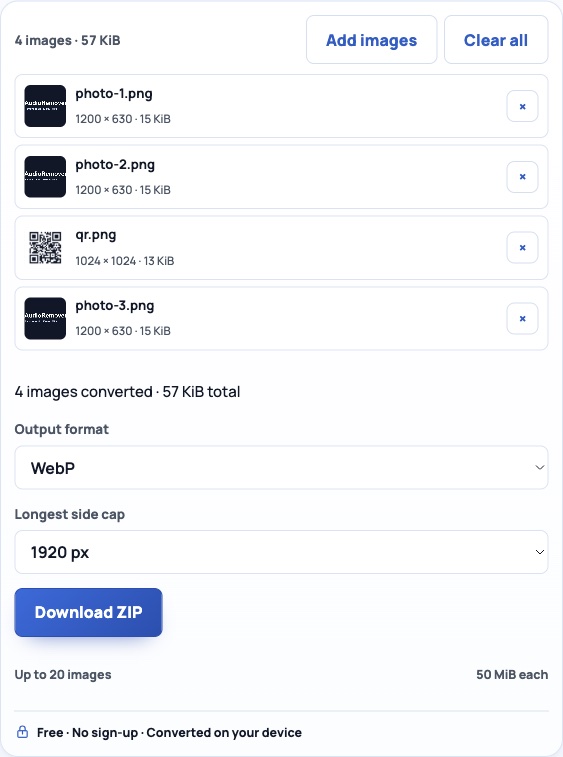
Each image is decoded, optionally scaled to the longest-side cap, drawn onto a canvas and re-encoded in the chosen format at high quality. The results are listed with their new sizes, so the whole batch can be judged before anything is downloaded. The original files are never modified; every result is a new file created in memory.
Choosing the output format for a batch
WebP is the best default for the web: it is usually the smallest at the same visual quality and every current browser opens it. JPEG is the universal choice when the files will be emailed, imported into older software or printed. PNG is right when the batch contains screenshots, logos or images with transparency, and wrong for photographs, where it produces files several times larger than JPEG.
The longest-side cap
A cap of 3840 pixels keeps 4K images usable for print and large displays. 1920 suits web pages and presentation slides, and 1280 is plenty for blogs, thumbnails and email. The scale keeps the aspect ratio and never enlarges, so small images stay as they are. In practice, halving the longest side often reduces a batch more than any quality setting, and the result looks better on screen than a heavily compressed full-size file.
What happens to transparency and metadata
Transparency survives when the target format supports it — WebP and PNG yes, JPEG no, where transparent areas become white. EXIF and GPS tags are dropped because the images are re-encoded from pixels; that is usually good for sharing, but it means camera and location data will not travel with the new files. Keep the originals if those tags matter.
Mixed input formats in one batch
A batch can mix JPG, PNG, WebP, AVIF and GIF, because every file is decoded first and the output format is chosen once for all of them. That is the point of batching: a folder with a dozen formats becomes a folder with one. The exception is animated GIFs, which arrive as their first frame, so a batch of animations loses their motion — convert those separately or keep the GIF originals.
Working with the results
The list shows each file with its new size. When the whole batch is ready, the ZIP download packs all results together, stored without extra compression so extraction is instant. If one image failed, the rest still finish and the failure is reported; remove it and re-run the batch without starting over.
Why the batch runs in the browser
Uploading a batch of client photos or personal images to an unknown converter is a real privacy cost, and a large upload is often slower than the conversion itself. Here, decoding and encoding happen locally and the ZIP never crosses the network. The trade is memory: the browser must hold each canvas while it works, which is exactly why the batch is capped at 20 files.
What this tool does not do
It does not process video or audio, does not rename files into a pattern, does not crop or rotate, and does not optimize PNG beyond the browser’s encoder. It also does not listen for a folder change and convert new files automatically. Those are separate tools or separate jobs, and keeping this page to a simple list keeps a batch of twenty images predictable.
Common questions
Are my images uploaded to a server?
No. Every image is decoded, resized and encoded in your browser, and the ZIP is assembled in memory on your device. Nothing leaves the page, which matters when the batch contains client work or private photos.
How many images can I convert at once?
Up to 20 images per batch, each no larger than 50 MiB. The limit exists because each image is decoded into a canvas; twenty large photos at once already puts pressure on a phone’s memory, and a larger batch would make the tab fail in the middle rather than at a clear boundary.
Will the dimensions change?
Only if you pick a longest-side cap. The default keeps the original dimensions, so the conversion changes the format and nothing else. The cap scales images down proportionally and never enlarges them, which makes it the cheapest way to reduce the total size of a batch.
What happens to animated GIFs?
They are converted from the first frame only, because the output formats here are still images. A long animation will appear as one still picture. If you need the animation, keep the GIF or use a converter that writes animated WebP.
Why did some files get bigger?
Converting a JPEG photo to PNG usually enlarges it, because PNG is lossless and cannot compress photographic detail the way JPEG can. Converting a PNG screenshot to JPEG can also grow it if the quality is high and the image has large flat areas. Format choice is a trade between size, quality and transparency, not a guaranteed shrink.
How is this different from the single image converter?
The single converter shows a live preview and lets you compare the result before downloading. This page trades that preview for throughput: the same settings applied to a list of files, with a ZIP at the end. Use the single tool to tune the settings, then this one to apply them to a folder.