 AudioRemover
Unzip files
Load a ZIP, review the list, tick the files you need and extract them. The archive is read on your device.
- ZIP
- 100 MiB max
- No upload
How to use it
- Choose a ZIP file.
- Tick the files you want from the list.
- Download the selected files, individually or as a ZIP.
Formats and limits
Open a ZIP in your browser, see every file inside, and download the ones you want — individually or as a smaller ZIP. Nothing is uploaded.
- Input
- ZIP
- File limit
- 100 MiB
- Processing
- In your browser, no upload
- Output
- Original files · ZIP
Processing facts
- No upload — the file stays in your browser.
- 100 MiB · File limit
- Phone transfer files expire after 1 hour.
What the page shows before it extracts
Loading a ZIP lists every entry with its name and uncompressed size, and files are ticked by default so a full extraction is one click. Directories are not separate entries, because a ZIP stores paths rather than folders. The list makes a common task cheap: finding the one invoice, photo or document inside an archive that someone sent without saying which file mattered.
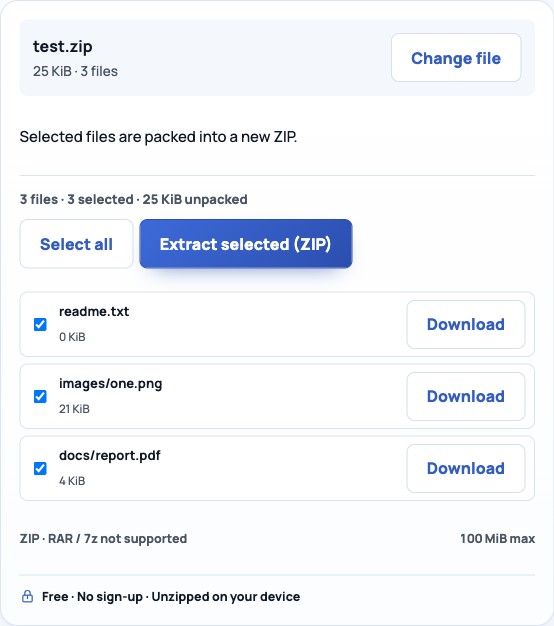
Choosing between single files and a re-packed ZIP
A single file download is the right move when you need exactly one item: the archive is opened, the file is decoded, and a browser download starts from memory. Extracting the selection re-packs the ticked files into a fresh ZIP, which is useful when several files have to arrive together or when the recipient should get a smaller archive than the original. The re-packed ZIP stores files without compressing them again, so it is fast and its contents are byte-for-byte what was inside.
Why the limits exist
ZIP files compress their table of contents and data, so a 5 MiB archive can expand into gigabytes — the classic archive bomb. This page caps the expanded total at 200 MiB and the entry count at 2000: an archive with more than 2000 entries is refused before unpacking, and once the expanded total would pass 200 MiB the remaining entries are skipped and reported. The 100 MiB archive limit is a separate, simpler guard: browsers have to hold the whole file in memory to read it. All three numbers are about keeping the tab alive on a phone.
Encrypted archives
A ZIP can be encrypted in two main ways, and both produce files this tool cannot open: the encrypted entries refuse to decode without a password, and the file list may be hidden too. That is a deliberate limitation rather than an oversight — a browser page asking for an archive password is a place where a typo, a phishing habit or a stored secret becomes a leak. Your operating system’s archive tool already handles passwords and runs with more context to judge the file.
What happens to paths
ZIP entries are strings, so an archive can claim a file is named ../../notes.txt. A careless unpacker would write that outside its own folder, which is the classic zip-slip vulnerability. This page strips path segments that climb upward and absolute leading slashes before anything is written, so every extracted file stays inside the selection you made. Gentle archives with ordinary nested folders are unaffected.
Files that open but look wrong
An archive can decode and still contain junk: truncated photos, text saved in an unusual encoding, or a renamed executable. The page extracts bytes, not content, so it will happily hand back a file that no application can open. If a file looks broken after extraction, compare its size with the number in the list; a large difference means the archive itself is damaged, which is worth knowing before deleting the original.
When not to use a browser to unzip
Archives you plan to keep and work with belong in the operating system: the file manager unpacks them to a folder, preserves every attribute and is not limited by tab memory. This page earns its place for quick inspection — checking what an attachment contains, pulling one file out, or handing a smaller subset to someone else — which is a different job from managing an archive collection.
What this tool does not do
It does not create ZIPs from loose files, does not convert between archive formats, and does not preview the contents of the files it lists. It does not repair damaged archives or recover deleted entries. Its single job is to open a ZIP safely, show what is inside and let you take what you need without touching the rest.
Common questions
Are my files uploaded to a server?
No. The archive is read and unpacked in the browser tab, and every download link points at data created in memory on your device. Nothing is sent to a server, which matters for archives that contain private documents.
Why can I not open an encrypted ZIP?
This tool uses a browser-side decompressor that reads standard, unencrypted ZIP data. Password-protected archives store their contents in a different, encrypted form, and decrypting them would mean handling passwords in a page. Open those archives with your operating system or a desktop tool first, then use this page for what you extract.
How large a ZIP can it handle?
The archive itself can be up to 100 MiB, and the files inside may add up to 200 MiB once expanded, with no more than 2000 entries. The expanded total matters more than the archive size, because a small ZIP can hold a very large amount of data; the cap keeps a malicious or accidental archive from exhausting the tab.
Does it open RAR or 7z files?
No. Only ZIP archives are supported, including files renamed with a different extension but still in ZIP format. RAR and 7z need their own decoders, and mixing several engines into one page would make it heavier without making it clearer.
Will the folder structure be kept?
Yes. Entries keep their relative paths, so a file inside images/2026/ stays in that folder when re-packed. Path segments that try to climb out of the archive, such as .., are removed when the archive is opened, so extracting cannot write outside the selected files.
How is this different from a download-and-unzip app?
It saves the step of unpacking everything to disk when you only want a few files. The page shows the contents first, so one photo can be downloaded without extracting a 200 MiB folder. For archives you intend to keep entirely, the operating system’s own unzip is still the fastest route.