 AudioRemover
QR code scanner
Drop in an image with a QR code and get the text or link it holds, ready to copy.
- PNG · JPG · WebP
- 10 MiB max
- No upload
or drag a PNG, JPG or WebP that contains a QR code here
Copied
Free · No sign-up · The image is decoded on your device
How to use it
- Choose an image that contains a QR code.
- Wait for the code to be decoded.
- Copy the text or open the link.
Formats and limits
Upload a screenshot or photo of a QR code and read its contents in your browser, with links made clickable. Nothing is uploaded.
- Input
- PNG · JPG · WebP
- File limit
- 10 MiB
- Processing
- In your browser, no upload
- Output
- Text
Processing facts
- No upload — the file stays in your browser.
- 10 MiB · File limit
- Phone transfer files expire after 1 hour.
Reading a code from a picture
The decoder looks for the three square finder patterns in the corners, works out the perspective, samples the grid and corrects errors using the code’s built-in redundancy. That is why a slightly imperfect photo can still decode: QR codes are designed to survive a damaged corner or a smudge. What defeats them is not damage but the wrong kind of image — too small, too blurred or too distorted for the grid to be recovered.
Getting a clean decode in practice
Start with the simplest source: a screenshot of the code on screen is almost always perfect. For a photo, fill the frame with the code, hold the camera square to the surface and avoid glare from lights or screens. If the code is on a curved surface such as a bottle or a leaflet, take several shots from different angles. Cropping to the code before scanning helps the detector use the pixels where they matter.
What a QR code can contain
A code can hold a URL, plain text, a Wi-Fi credential string, a contact card, a payment address or an app store link. The scanner shows whatever was encoded without interpreting it, which is the honest behaviour: a code that says it opens a company page may point anywhere. Read the decoded text before opening a link, and treat payment addresses with the same care as a bank transfer.
Privacy of codes and images
Codes are often used for private things: a Wi-Fi password taped to a router, a ticket, a one-time login link. Uploading such an image to an unknown scanning service hands over the secret. This page decodes in the browser and does not upload, so the image never leaves the device, and the decoded text is not stored anywhere either.
Why manual cropping helps
The detector works best when the code occupies a good part of the image. A photo of a whole poster shrinks the code to a few dozen pixels, which is below what the grid needs. Cropping to the code before scanning, or taking a closer shot, restores the resolution. When a code refuses to decode, this is the first thing to try, before assuming the code is damaged.
Error correction and damaged codes
QR codes carry redundant data, and the level is chosen by whoever generated them. A high level survives a logo printed in the middle or a torn corner; a low level fails early. That is why some codes decode from a crumpled receipt while others fail on a clean print with a small sticker: the redundancy budget differs. Nothing in the scanner can add redundancy back; a code that was generated at a low level simply has less margin.
What this page does not do
It does not generate QR codes — the separate generator does that, with size, colour and error-correction options. It does not scan barcodes or other 2D formats, does not read codes from a live camera and does not batch-process a folder of images. It does not follow the link either; you decide what to do with the result.
Choosing between this and a phone camera
A phone camera is the right tool when the code is physically in front of you. This page is for the other half of the cases: a screenshot someone sent, a code in a PDF, an image on a desktop where reaching for a phone is extra work, or a code you want to inspect before opening. Reading the text first, without navigating, is the safest way to check where a code actually points.
Common questions
Are my images uploaded to a server?
No. The picture is decoded and analyzed in your browser, and the result stays on your device. That matters when the code contains a personal link, a Wi-Fi password or a payment address.
Why will it not read my code?
A QR code needs enough contrast, and the image needs enough resolution. Blur, glare, a steep angle, a printed code photographed from too far away, or a code covered by a sticker can all defeat the detector. Crop tightly around the code, avoid reflections, and shoot straight on; screenshots of on-screen codes almost always work.
Can it use my camera to scan live?
No. This page reads QR codes from image files — a screenshot, a photo, or an image someone sent you. That design keeps it private and simple: no camera permission, no video stream, and it works on a desktop where pointing a camera at a screen is awkward anyway.
What if the image has several QR codes?
The decoder returns the first code it can read confidently. If a screenshot contains several codes, crop the one you need and scan it alone. This is also the practical way to scan a code from a poster or a flyer that has more than one.
Does it read barcodes too?
No. This tool reads QR codes only, including the common variants used for links, Wi-Fi and contact cards. One-dimensional barcodes and other two-dimensional formats such as Data Matrix are not decoded here.
What does the result look like?
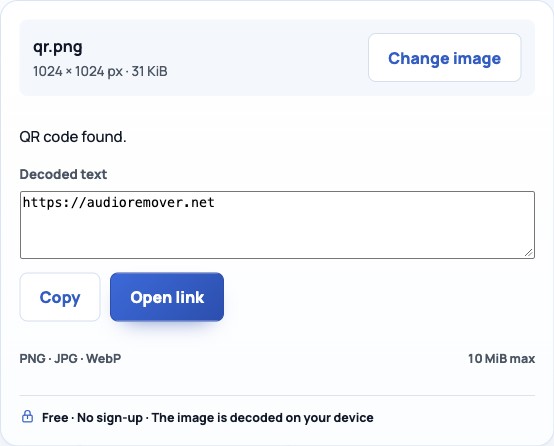
The decoded text is shown in full with a copy button; if it is a web address, it also becomes a clickable link. You decide whether to open it — the page never navigates on its own, which protects you from codes that point somewhere unexpected.