 AudioRemover
Images to PDF
Add images, set the page size and order, and download a single PDF. Files stay in your browser.
- JPG · PNG · WebP · GIF · AVIF
- 50 MiB max
- No upload
or drop several JPG, PNG, WebP, GIF or AVIF files here
Free · No sign-up · PDF built on your device
How to use it
- Add one or more images.
- Choose the page size and order.
- Download the PDF.
Formats and limits
Combine JPG, PNG, WebP, GIF or AVIF images into one PDF, one image per page, with A4, Letter or automatic page sizes.
- Input
- JPG · PNG · WebP · GIF · AVIF
- File limit
- 50 MiB
- Processing
- In your browser, no upload
- Output
- PDF · A4 · Letter
Processing facts
- No upload — the file stays in your browser.
- 50 MiB · File limit
- Phone transfer files expire after 1 hour.
What the converter produces
The result is a standard PDF with one page per image, in the order shown in the list. Each page holds a raster image, not vector shapes or editable text, so the PDF looks exactly like the source images and cannot be reflowed. That is the right format for scans, receipts, photos of documents, screenshots and portfolios that should be shared as one file instead of a folder.
Page sizes and orientation
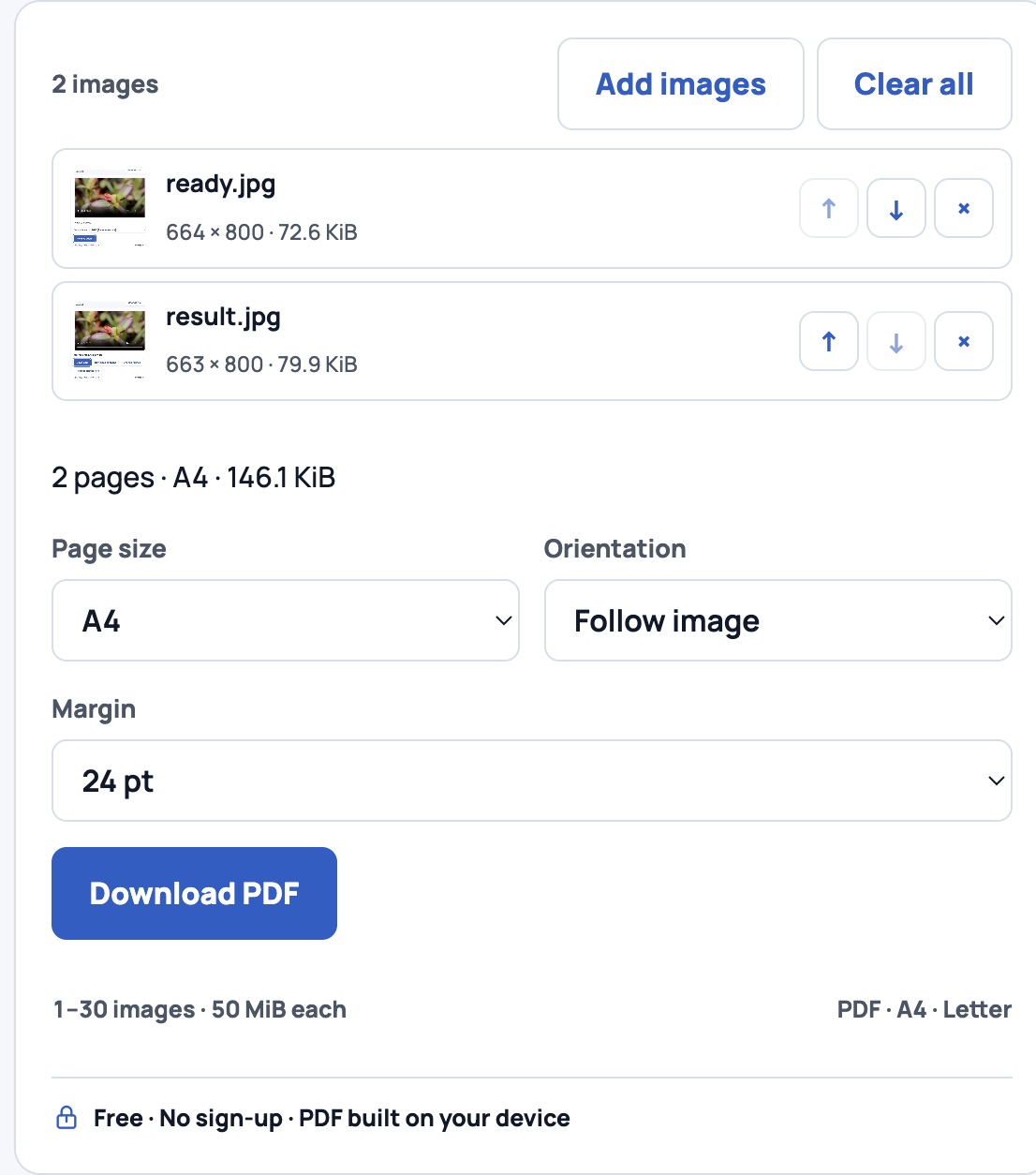
Automatic sizing makes each page match its image, which avoids white borders and suits reading on a screen. A4 and Letter create uniform pages for printing: the image is scaled to fit inside the margins and centered, so nothing is cropped. Orientation follows the image by default, and a portrait or landscape override is useful when a mixed set should print consistently.
Resolution and print quality
A PDF page is measured in points, not pixels, so the print result depends on how many pixels the image provides. For a full A4 page, 150 dpi needs about 1240 × 1754 pixels, and 300 dpi needs roughly 2480 × 3508. Photos taken with a phone are usually enough; screenshots and small images will look soft when stretched to a full page. Enlarging the page cannot add detail.
Order, orientation and duplicates
The list is the document. Move images up or down until the sequence reads correctly, and remove duplicates before exporting. A common mistake is adding a photo twice because the file picker keeps the previous selection; check the count and thumbnails. Page numbers are not drawn on the pages, so if the document needs them, add a footer in a PDF editor afterwards.
Normalization and transparency
Formats such as WebP, GIF and AVIF are not supported directly by the PDF writer, and phone photos may carry an EXIF rotation flag. The converter draws every image onto a canvas, applies the orientation, fills transparent areas with white and encodes a high-quality JPEG. That makes pages consistent and predictable, at the cost of losing transparency and some metadata.
File size and sharing
The PDF is mostly the sum of its images. A dozen phone photos can produce a file of tens of megabytes, which is too large for many email servers. Reducing image resolution before adding them, or exporting fewer pages, is more effective than any PDF setting. For long-term archiving, keep the original images and treat the PDF as a convenient bundle.
What the converter does not do
It does not recognize text, merge an existing PDF, reorder pages of another document, add page numbers or protect the file with a password. It also does not compress images beyond the JPEG quality used for normalization. For editing an existing PDF, use a PDF editor; for scanned text, use OCR first and then combine the results.
Common questions
Does converting lose quality?
Each image is normalized to a high-quality JPEG before being embedded, which removes EXIF rotation and handles formats the PDF cannot store directly. A single conversion at high quality is hard to see; text screenshots are best exported at a generous resolution because PDF pages hold images, not editable text.
Which page size should I choose?
Automatic keeps each image at its own proportions and makes a page that fits it, which is ideal for viewing on screen. A4 and Letter are for printing and force every page to a standard size, with the image fitted inside the margins.
Can I change the page order?
Yes. The list has up and down buttons, and the PDF follows the list order. Remove an image with the × button before exporting if it was added by mistake.
Can I select the text inside the PDF?
No. Each page contains a picture of the original image, so the text is part of the image. Turning scans into selectable text needs OCR, which this tool does not include.
Are my images uploaded?
No. Images are decoded, normalized and written into the PDF in the browser. Nothing is sent to a server.