 AudioRemover
PDF to images
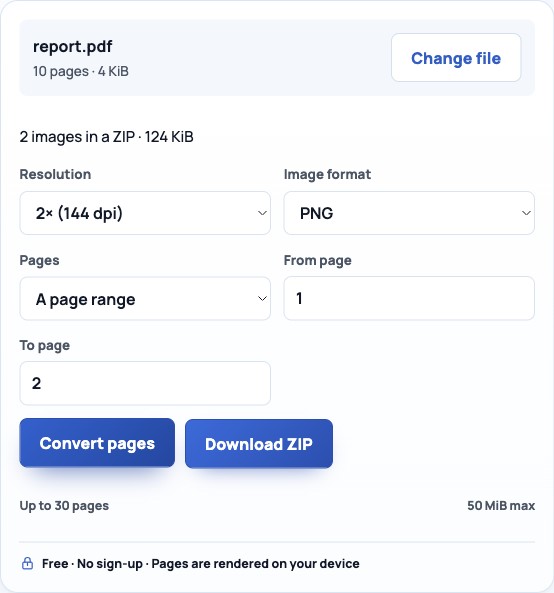
Choose a PDF, pick a resolution and a page range, and download each page as an image named in page order.
- 50 MiB max
- No upload
or drag a PDF here
Free · No sign-up · Pages are rendered on your device
How to use it
- Choose a PDF file.
- Pick the resolution, format and page range.
- Download the ZIP of page images.
Formats and limits
Render every page of a PDF as a PNG or JPEG at 1×, 2× or 3× resolution and download them as one ZIP. Nothing is uploaded.
- Input
- File limit
- 50 MiB
- Processing
- In your browser, no upload
- Output
- ZIP of PNG or JPEG
Processing facts
- No upload — the file stays in your browser.
- 50 MiB · File limit
- Phone transfer files expire after 1 hour.
What the conversion produces
Each page becomes its own image at the resolution you choose, named page-0001, page-0002 and so on in document order, all packed into a single ZIP. Scans and vector pages both render, because the PDF engine draws whatever the page contains. What comes out is a picture: text is no longer selectable and links no longer work, which is exactly what you want when the destination needs an image and exactly what you do not want when it needs text.
Choosing the right resolution
PDF pages are measured in points, so the pixels depend on a scale factor: a Letter page is 612 by 792 points, which becomes roughly 1224 by 1584 pixels at 2×. For a slide deck or a document read on a screen, 2× is sharp on most displays. For print, 3× gives a comfortable margin. Choosing 3× for a 30-page document creates a large ZIP and a lot of memory pressure, so match the resolution to the destination rather than always picking the highest.
PNG or JPEG
PNG is lossless and keeps sharp text edges and flat interface colours, which suits documents, slides and diagrams. JPEG is smaller and better for photographic pages such as scans and photo books, at the cost of slight softening around letters. For mixed documents, PNG is the safer default; for a 30-page photo scan, JPEG saves a lot of space with little visible cost.
Pages, ranges and long documents
Converting the whole file is the default, but the range fields let you render just the pages you need — a cover, an appendix, a single diagram. That keeps the ZIP small and the work short. The 30-page cap protects browser memory; for longer documents, split the work into ranges and merge the folders afterwards. Each page is rendered independently, so ranges never change the result of a page.
Scans, vector pages and fonts
A scanned PDF is already an image inside a wrapper, so rendering it again at 2× does not add detail — it just enlarges the existing pixels. Vector pages, by contrast, render crisp at any scale, which is the point of choosing 3×. Embedded fonts travel with the rendering; fonts that are referenced but missing get substituted, and that substitution is where a rare layout difference comes from.
Privacy and why it runs locally
Contracts, medical records and financial statements are the kind of document people convert to images, and those are exactly the files that should not be uploaded to an unknown server. Here the PDF is parsed and drawn on your device, and the ZIP is created in memory. The page has no upload step at all, which is a stronger guarantee than a promise in a privacy policy.
Working with the ZIP
The ZIP stores the images without extra compression, so it opens instantly and the files inside are exactly what was rendered. Extract it with any archiver and the pages are already in order. If you need to combine pages back into a document — a slide deck, a photo book — the image tools and the images-to-PDF converter handle that in the other direction.
What this tool does not do
It does not extract text, recognize scans or rebuild an editable document; it does not split pages into pieces or merge PDFs. Those are separate tools with separate jobs. Keeping the conversion single-purpose means the output is predictable: one image per page, at the chosen resolution, in the chosen format, in one ZIP.
Common questions
Are my files uploaded to a server?
No. The PDF is parsed and each page is drawn to a canvas in your browser, and the ZIP is assembled on your device. Nothing is sent anywhere, so confidential documents stay local.
Which resolution should I choose?
1× matches the page at screen size and suits previews and thumbnails. 2× is the everyday choice for slides and documents viewed on a screen. 3× is for printing or zooming into detail; it makes files several times larger. The export is measured in pixels, so a page rendered at 3× has three times the width and height of the same page at 1×.
Can I convert a password-protected PDF?
No. Rendering needs to read the pages, and an encrypted PDF refuses without the password. Save an unprotected copy in a PDF reader first, then convert that copy.
Can I copy text out of the images?
Not from the images — a PNG or JPEG holds pixels, not text. If you need the words, use the PDF to text tool, which reads the text layer directly. For a scanned PDF with no text layer, neither tool invents the text; that needs OCR.
How many pages can it handle?
Up to 30 pages per conversion, and the PDF can be up to 50 MiB. The cap exists because each rendered page is a full-size canvas held in memory while the ZIP is built. For long documents, convert in ranges and combine the ZIPs afterwards.
Why do some pages look different from the PDF viewer?
Rendering uses the browser’s PDF engine, which follows the file’s fonts and vector shapes. Unusual fonts that are not embedded may be substituted, and interactive form fields are drawn as their current appearance. The layout normally matches, but a desktop viewer may render a rare construct slightly differently.