 AudioRemover
Merge PDFs
Add your PDFs, put them in order, and download a single merged file. Everything runs in your browser.
- 50 MiB max
- No upload
or drop two or more PDF files here
Free · No sign-up · PDFs merge on your device
How to use it
- Add two or more PDF files.
- Move them into the order you want.
- Download the merged PDF.
Formats and limits
Combine two or more PDF files into one document in the order you choose. Pages are copied as they are, so text stays sharp and no file is uploaded.
- Input
- File limit
- 50 MiB
- Processing
- In your browser, no upload
- Output
Processing facts
- No upload — the file stays in your browser.
- 50 MiB · File limit
- Phone transfer files expire after 1 hour.
What the merged document looks like
The result is one PDF whose pages appear in the order of the list, from top to bottom. Each page keeps its own size and orientation, so a Letter cover followed by A4 pages stays mixed exactly as it was; nothing is scaled, cropped or padded. Because the pages are moved rather than redrawn, the merge is fast even for long documents.
Order is the whole point
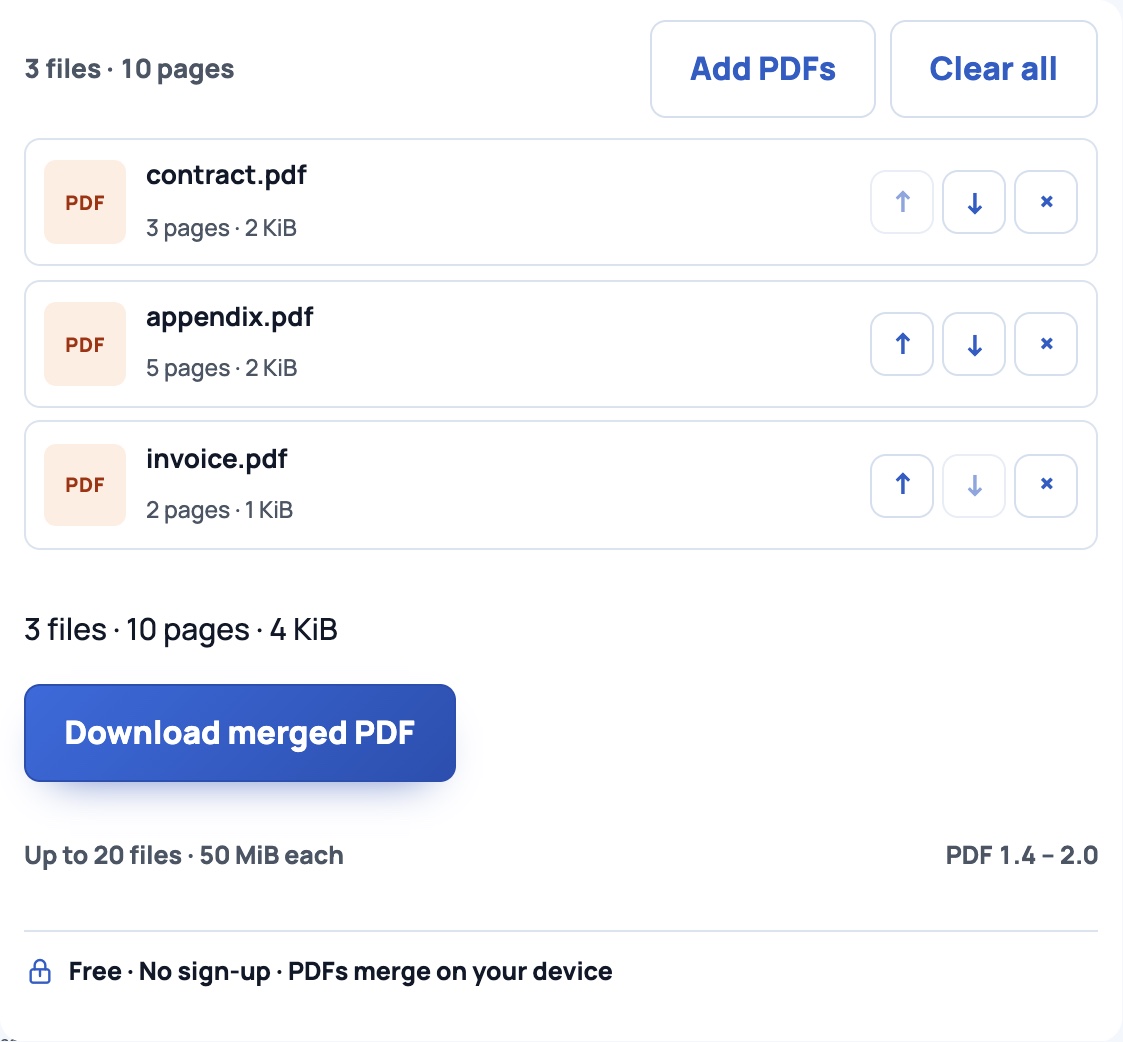
Most merges fail on order, not on technology: a contract signed on page three of one file ends up after an appendix from another. Move files until the sequence reads correctly, and remember that the list is the only thing the merge follows. Removing a file and adding it again puts it at the end, so check the numbering before you download.
Text, images and fonts
Merging copies the objects that make up each page: glyphs, images, fonts and colour spaces. Text stays selectable and searchable, and photographs do not lose a generation of compression the way a screenshot-then-print workflow would. Embedded fonts travel with the pages, so a reader that could display the original can display the merge. Only the document-level structure is rebuilt.
Password-protected and restricted files
A PDF can refuse to open without a password, or open but restrict copying and printing. The first case is a hard stop here. The second usually still loads, but if the restriction is enforced by encryption the pages cannot be read either. Removing protection is a job for the application that created the file or for its owner; this tool does not break encryption.
What is not carried over
Bookmarks and outlines, named destinations, page labels, document attachments, JavaScript actions, digital signatures and interactive form fields belong to the document rather than to a page, so they are left behind. A signature would be invalid after any edit anyway. If a form must keep working, flatten it to static pages first, or merge with a desktop PDF editor that preserves AcroForm fields.
Working within browser memory
Every page has to exist in memory at once before the merged file can be written, which is why the limits are conservative. Photographs scanned at high resolution are the usual culprit: ten 50 MiB scans will hit the total cap before the file count. Downsampling those scans in an image editor, or merging in two passes, is faster than retrying on a phone.
Check the file before deleting the originals
Open the download and scroll through it: look for a duplicated page, a missing cover and any page rotated the wrong way. Merging preserves rotation flags, so a landscape scan that was stored sideways stays sideways until you rotate it. If the order is wrong, fix the list and download again — the sources are untouched, so nothing is lost by repeating the step.
When merging is not the right tool
If you need to slip pages into the middle of an existing document, delete pages, or turn one file into several, use a PDF splitter or a full editor rather than merging around the problem. If the merged file is too large to email, compress it after merging instead of merging fewer pages; the page order you built is worth keeping.
Common questions
Are my PDFs uploaded to a server?
No. Each file is read, copied and written back together in your browser. Nothing leaves your device, and once the first merge has loaded the PDF engine the page keeps working offline.
Does merging reduce quality?
No. Pages are copied from one document into another without being re-rendered, so text stays vector, images keep their original compression and embedded fonts stay embedded. The merged file is roughly the sum of its parts, minus a little shared overhead.
Can I merge password-protected PDFs?
Not while the password is still set. The tool has to read the pages to copy them, and an encrypted file refuses that without the password. Open the file in a PDF reader, save an unprotected copy, then merge that copy.
How many files can I merge at once?
Up to 20 PDFs, each no larger than 50 MiB, with a combined limit of about 200 MiB. These limits keep the work inside the memory a phone or tablet can spare; a desktop browser can usually handle more, but the cap is the same everywhere for predictability.
What about bookmarks, forms and links?
Page content is preserved, but document-level features are not. Outlines and bookmarks, named destinations, page labels, attachments and existing form fields do not survive the copy, and links that point to another page of the same file will no longer resolve. Flatten or print such documents first if those features matter.
Can I change the order after adding files?
Yes. Use the arrow buttons on each row, or remove a file with the × button. The merged PDF is rebuilt automatically after every change, so the download always matches the list.