 AudioRemover
PDF to text
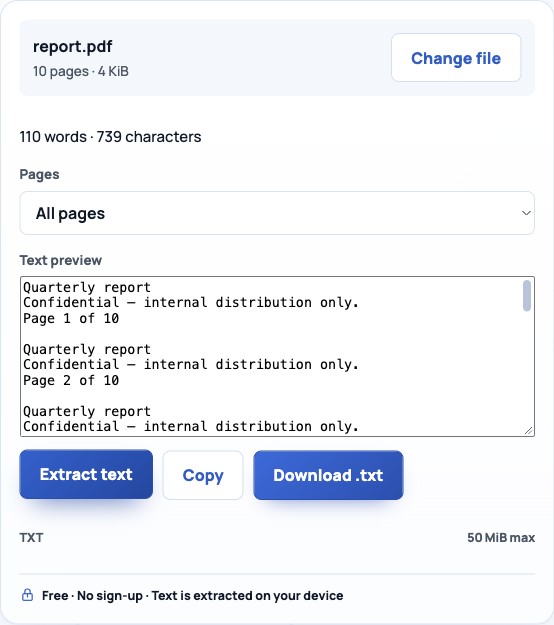
Choose a PDF and get its text in reading order, ready to copy into a document, a search box or a script.
- 50 MiB max
- No upload
or drag a PDF here
Copied
Free · No sign-up · Text is extracted on your device
How to use it
- Choose a PDF file.
- Pick the first page or the whole document.
- Copy the text or download the .txt file.
Formats and limits
Pull the text layer out of a PDF into plain text you can copy or download as a .txt file. Nothing is uploaded.
- Input
- File limit
- 50 MiB
- Processing
- In your browser, no upload
- Output
- TXT
Processing facts
- No upload — the file stays in your browser.
- 50 MiB · File limit
- Phone transfer files expire after 1 hour.
What the text layer is
A born-digital PDF stores each string of text with a position, a font and an encoding. The extractor reads those strings and reassembles them into paragraphs and lines, skipping images and drawings. That is why the output matches the words on the page and why the order can differ from what the eye sees: the text layer has no concept of columns, only of where each string was drawn.
Scanned documents and OCR
A scanned PDF contains an image of each page. There is no text hidden inside it, so the extractor returns nothing — not an error, just the truth about the file. To get text from a scan, an OCR engine has to look at the pixels and recognize characters. OCR is a different technology with its own accuracy trade-offs, and this page deliberately does not pretend to do it: an empty result tells you exactly where you stand.
Reading order, columns and tables
Strings are positioned on the page, and the extractor walks them in the order the document reports. For a single column of prose that matches the eye. For a two-column layout or a table, strings from different columns can interleave, because the file has no grid to sort by. When the result reads oddly, extract only the page range you need and tidy the text, or use the page image as the reference while you edit.
Copy or download
The extracted text appears in a preview you can select and copy, and the same text is offered as a .txt download. Copying suits a paragraph that goes into an email; the download suits a long report that will be searched or processed. The .txt file is UTF-8 plain text with no styling, so it opens anywhere and imports cleanly into editors and scripts.
Hyphenation, ligatures and accents
PDF text is stored as glyphs, and joining them back into characters is usually exact. Two edge cases show up: words hyphenated across lines can arrive with the hyphen and a line break inside them, and ligatures such as fi or fl may come out as unexpected characters. Accents occasionally lose their mark when the font used a custom encoding. For most documents none of this appears; when it does, expect to spend a minute cleaning up rather than blaming the tool.
Privacy of the local path
The documents people extract text from are often the sensitive ones: contracts, medical letters, invoices. Parsing them in the browser means the file never reaches a server and no copy survives the session. The page also works offline after loading, so a sensitive file can be processed on a plane or a locked-down machine without a network at all.
Where extracted text goes next
Plain text is the universal input: paste it into a word processor, search it, count words, feed it to a translation tool or a script. It is also the right first step before asking a language model to summarize a document, because text is cheap to send and images are not. Clean up the paragraphs first; a model does better with tidy input than with interleaved columns.
What this tool does not do
It does not OCR images, does not rebuild the layout, does not export to Word or Markdown and does not keep bold or italic styling. It does not merge or split PDFs either. Those are separate jobs, and keeping this page to one job — get the words out faithfully — is what makes its output predictable enough to trust with real documents.
Common questions
Are my files uploaded to a server?
No. The PDF is parsed in your browser and the text is assembled on your device. Nothing is sent anywhere, which matters for contracts, reports and anything with personal data.
Why is the text empty for my scanned PDF?
A scan is a picture of a page, not text. There is no text layer to read, so the extractor finds nothing — that is a property of the file, not a failure of the tool. Making that text available requires OCR, which this page does not include. Run the scan through an OCR tool first, then extract.
Does it keep the layout?
It keeps reading order and line breaks as the PDF engine reports them, which is usually close to the visual order. Columns, tables and sidebars can come out interleaved, because the text layer stores drawing instructions rather than a grid. For layout-accurate output, convert to images and read them, or use a layout-aware tool.
What happens to tables?
Cells appear as a run of text, often separated by spaces or newlines but without their grid. Simple tables remain readable; complex ones lose the column structure. Copy the result into a spreadsheet and split on a delimiter, or extract the table page as an image and rebuild it by hand.
Can it open a password-protected PDF?
No. Reading the text needs the file to be decrypted, and encrypted PDFs refuse without the password. Save an unprotected copy in a PDF reader first, then run the extractor on that copy.
Why do some characters come out scrambled?
PDFs store glyphs with font-specific encodings, and ligatures or unusual character maps can map back to the wrong characters — an fi ligature becoming something odd, or accented letters losing their mark. Most documents extract cleanly; when they do not, the fix is usually the source file, not the extractor.