 AudioRemover
Remove Audio from MKV
Delete every audio track from a Matroska file and download a silent copy. The video stream is copied, so H.264, HEVC, AV1 or VP9 stays untouched.
Need a new soundtrack after removing the sound? Add or replace audio
How to use it
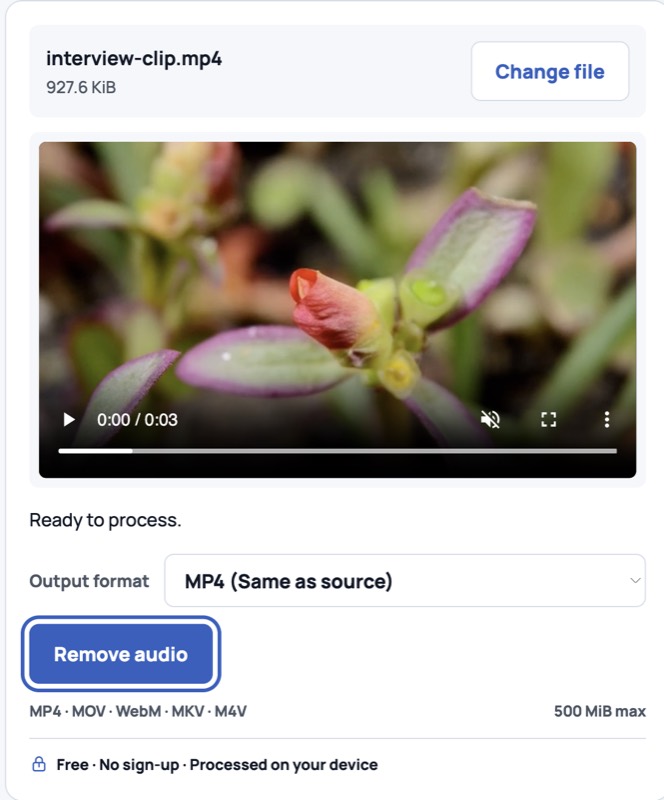
- Choose an MKV file from your device.
- Select “Remove audio” and choose MKV or MP4 output.
- Download the silent file and open it in VLC.
Formats and limits
Remove all audio from an MKV in your browser. The video is copied without re-encoding; the silent MKV is ready for VLC or a later remux. Nothing is uploaded.
- Input
- MP4 · MOV · WebM · MKV · M4V
- File limit
- 500 MiB
- Processing
- In your browser, no upload
- Output
- MKV · MP4 · MOV · WebM
| Video codecs | H.264, HEVC, AV1, VP9 |
|---|---|
| Output containers | MKV, MP4, MOV, WebM (depending on the codec) |
| Audio | AAC, Opus, FLAC, AC3, DTS and every other audio track is removed |
| Subtitles | SRT, ASS and WebVTT tracks are not carried |
| Attachments | Fonts, cover art and other attachments are not carried |
| Playback | VLC, mpv and desktop players; browsers are unreliable |
| Typical source | Downloads, rips, multi-language releases |
| File limit | 500 MiB |
MKV is a container, not a codec
Matroska can hold almost any video and audio codec: H.264, HEVC, AV1 or VP9 video, and AAC, Opus, FLAC, AC3 or DTS audio. The mute tool copies the video stream into a new container and removes the audio.
Every audio track is removed
An MKV often carries several audio tracks, such as dubs and commentary. The tool removes all of them. To keep the picture and add a new track, use Add or Replace Audio.
MKV, MP4 or WebM output
H.264 and HEVC MKV files can be exported as MKV, MP4 or MOV. AV1 and VP9 files can be exported as MKV, WebM or MP4. Only the container changes when the video codec is compatible; the picture is not re-encoded.
Subtitle tracks are not carried
SRT, ASS and WebVTT tracks inside the MKV are not copied by this tool. Extract them with the subtitle tool first if you need them.
Playback and limits
Browsers do not play MKV reliably; use VLC, mpv or a desktop player. One local file at a time, up to 500 MiB, processed in your browser. Large files need enough free memory; close other tabs if processing fails.
Which tracks survive the remux
The export keeps one primary video stream and drops every audio, subtitle and attachment track. If the source has multiple video angles, only the primary angle is kept. The video codec, resolution, frame rate and HDR metadata are copied unchanged, which is why a silent MKV is often almost as large as the original.
Subtitles and attachments in an MKV
Matroska can carry SRT, ASS and WebVTT subtitles, plus fonts and cover art. Muting a file rebuilds the container from the video stream, so those tracks are not carried over. Extract the subtitles first if you need them, and remux them back with a desktop tool when a bilingual release has to stay bilingual. The picture is unaffected either way.
Playing a silent MKV on a TV
Many televisions and game consoles do not read MKV from a USB drive, even when the codec inside is H.264. If the file is for the living room, export MP4 instead: the video stream is copied into a container the TV already understands. Keep the MKV for desktop players and archives, where VLC and mpv open it without complaint.
MKV on a media server
Plex, Jellyfin and similar servers read MKV directly and prefer it for multi-track releases. Muting drops every audio track, which is fine for a silent background loop but loses the dubs the server could otherwise offer. Keep the original when audio tracks are part of the library.
Common questions
Does removing audio from an MKV re-encode the video?
No. The video stream is copied into a new container, so the picture keeps its original codec and quality.
Can I convert the silent MKV to MP4?
Yes when the video is H.264, HEVC, AV1 or VP9. Choose MP4 in the output control; only the container changes.
Why is the silent MKV still large?
MKV keeps the full video stream. Removing audio only saves the size of the audio tracks.
Can I keep the subtitles?
Not with this tool. Extract the subtitle tracks first, then remux them with the silent video in a desktop tool.
Can I keep one audio track?
No. Mute removes every audio track. Use Add or Replace Audio to write a new soundtrack.
Is the MKV uploaded?
No. The file is processed in your browser and never leaves your device.