 AudioRemover
Add or Replace Audio in Video
Add an audio track to a video or replace its existing sound. The picture is copied without re-encoding.
- MP4 · MOV · WebM · MKV · M4V
- 500 MiB max
- No upload
Need to remove all sound? Remove audio
or drag a video here
Free · No sign-up · Processed on your device
How to use it
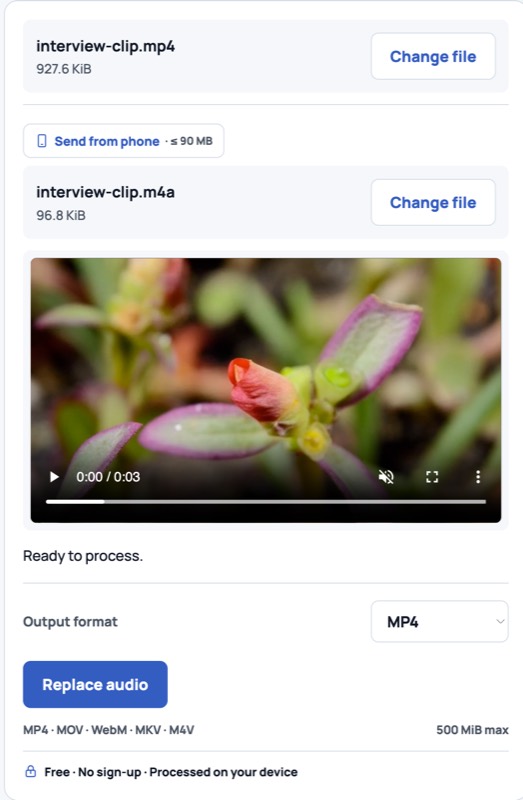
- Choose a video from your device.
- Choose the audio file to use.
- Download the result.
Formats and limits
Add or replace audio in a video in your browser. The picture is copied without re-encoding.
- Input
- MP4 · MOV · WebM · MKV · M4V
- Audio file
- MP3 · M4A · WAV · FLAC · OGG
- File limit
- 500 MiB
- Processing
- In your browser, no upload
- Output
- MP4 · MOV · WebM · MKV
Processing facts
- No upload — the file stays in your browser.
- 500 MiB · File limit
- No re-encode — the picture is copied, so it often finishes in seconds.
- Phone transfer files expire after 1 hour.
What replacing an audio track does
The tool copies the picture from the source, drops its original audio and adds the track you chose. The video is not re-encoded, so resolution, frame rate and codec stay the same, and a long recording finishes in seconds. The new audio is encoded in a format the output container supports, which keeps the result playable everywhere the container is.
Pick the right output container
MP4 is the safe default for phones, TVs, browsers and social platforms. MOV suits Final Cut, iMovie and QuickTime workflows. MKV accepts more audio codecs and several tracks, which helps when the source audio is unusual. WebM keeps VP8 or VP9 video with Opus audio for the web. The picture keeps its original codec either way.
Matching the audio length
If the new audio is shorter than the video, the result ends with silence. If it is longer, the export is cut to the video duration, so the tail of a long soundtrack is lost. Trim the audio first when you need an exact fit; trimming the video is the other option when the picture is the part you can spare.
Volume and sync
The tool does not change the loudness of the new track. If the soundtrack is much louder or quieter than the rest of your content, normalize it with the audio converter before adding it. Lip sync depends on the audio starting with the picture; trim a lead-in when the sound arrives early.
When you want silence instead
To remove the audio and keep the picture, use the video audio remover: it drops every track and adds nothing. To keep the original sound and change only the container, use the video converter. This page is for cases where the sound itself is being replaced.
Check the result before you share it
Play the export once: confirm the picture is intact, the new sound starts at the right moment and the volume is sensible on phone speakers. Keep the source until you are satisfied, because running the replacement again always starts from the original file rather than stacking changes.
Using a video as the audio source
The audio picker also accepts video files: the soundtrack is read and the picture is ignored. That is useful when the music or narration you want already exists in another clip and you would rather not extract it first. If you need the audio on its own, the extract page produces the MP3 in one step.
What the export keeps from the original
Chapters, subtitle tracks and data tracks are not carried into the new file, and container-level tags may be preserved or dropped depending on the target format. If you need subtitles, export them first with the subtitle tool. If you need the original metadata, check the result before deleting the source.
Pick the format for the destination
MP4 for phones, TVs and social platforms, MOV for Final Cut and QuickTime, MKV when the container has to hold several tracks. Choosing after the fact means running the replacement twice.
Common questions
How do I add audio to a video?
Choose a video, then an audio file. If the video already has sound, the new track replaces it.
How do I replace audio in a video?
Select the video and the new audio file, choose an output format and export. The original picture is not re-encoded.
How do I remove audio from a video?
Use the video audio remover. It deletes every audio track and keeps the picture.
What if the audio is longer than the video?
The export is cut to the video length.
Which audio files work?
MP3, M4A, WAV, FLAC, OGG, Opus, and the audio track of a video file.