 AudioRemover
Remove Audio from MOV
Remove every audio track from a QuickTime MOV and download a silent copy. The video stream is copied, so the picture keeps its original H.264 or HEVC encoding.
Need a new soundtrack after removing the sound? Add or replace audio
How to use it
- Choose a MOV file from your device.
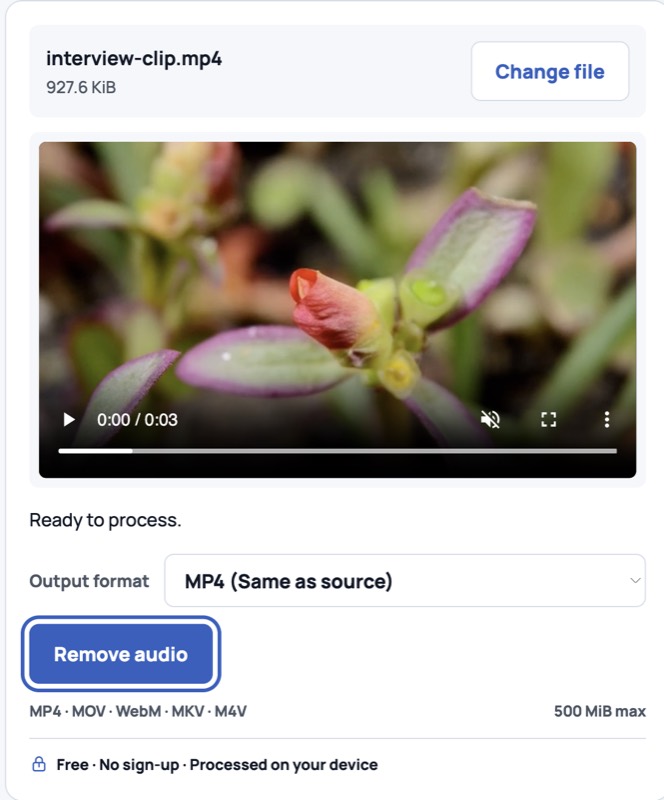
- Select “Remove audio” and wait for the local export.
- Download the silent movie and open it in QuickTime Player.
Formats and limits
Remove all audio from a MOV video online for free, without uploading. The QuickTime picture is copied without re-encoding and the export stays MOV or MP4.
- Input
- MP4 · MOV · WebM · MKV · M4V
- File limit
- 500 MiB
- Processing
- In your browser, no upload
- Output
- MOV · MP4 · MKV
| Video codecs | H.264, HEVC, AV1. ProRes is not supported. |
|---|---|
| Output containers | MOV, MP4, MKV |
| Audio | Every audio track is removed |
| Subtitles | Not carried into the export |
| Timecode tracks | Not carried into the export |
| Playback | QuickTime Player, macOS, iPhone |
| Typical source | iPhone and Mac recordings, camera files |
| File limit | 500 MiB |
MOV is a container, not a codec
A .mov file usually holds H.264 or HEVC video, and sometimes ProRes. The mute tool can copy H.264, HEVC, AV1, VP8 and VP9 video. ProRes MOV files are not supported: the tool reports that the video cannot be muted without re-encoding, and it does not re-encode the picture.
iPhone and Mac recordings
Videos recorded on an iPhone are usually HEVC inside a MOV container. HEVC is copied and tagged hvc1 so QuickTime Player, iMovie and Final Cut can open the silent file. MP4 output is offered as well when you need a file for other platforms.
MOV or MP4 output
For a .mov source with H.264 or HEVC video, MOV is preselected because it matches the original container. The video stream is identical in MOV and MP4; only the container changes, and neither option re-encodes the picture.
All audio tracks are removed
Camera MOV files can contain timecode and several audio tracks. The mute tool drops every audio stream, including speech, music and ambient sound, while the video stream is copied. If you want to keep the picture and add a new track, use Add or Replace Audio.
Verify the export and file limits
Open the download in QuickTime Player and choose Window → Show Movie Inspector. The audio format field is empty when the removal worked. One local file at a time, up to 500 MiB, processed in your browser. Large files need enough free memory; close other tabs if processing fails.
What else a MOV can carry
QuickTime files can include timecode, chapter and data tracks in addition to audio. This tool keeps only the video stream, so timecode and chapter markers are not carried into the silent copy. The picture and its codec settings are unchanged. Keep the original if you need those tracks.
Muting a MOV on Windows
Windows can open a MOV, but HEVC playback needs the HEVC Video Extensions from the Microsoft Store, and older players may refuse the file entirely. Muting does not change that: the export keeps the source codec. Play the result in VLC, mpv or the Films & TV app with the extension installed, and export MP4 instead when the file is going somewhere less forgiving.
MOV from drones and action cameras
Action cameras often write MOV with a single audio track and a timecode track. Muting copies only the video, so the timecode does not reach the export. If an editing workflow depends on it, mute a copy and keep the camera original untouched. Check the file first. Check it.
Common questions
Will QuickTime play the silent MOV?
Yes, when the source is H.264 or HEVC and you export MOV. The file stays a QuickTime movie; only the audio tracks are missing.
Can I remove sound from an iPhone video?
Yes, when the video is H.264 or HEVC. Choose the MOV file and export MOV or MP4.
Does it support ProRes MOV?
No. ProRes is not in the supported video codecs, so the picture cannot be copied into a supported container without re-encoding. The tool reports that the file cannot be muted.
Does removing audio re-encode the video?
No. The video stream is copied, so the export keeps the original resolution, frame rate and codec.
Can I keep one audio track?
No. Mute removes all audio tracks. If you need a different soundtrack, export a silent file and add the new track with Add or Replace Audio.
Is the MOV uploaded?
No. Processing happens in your browser, and the file stays on your device.