 AudioRemover
Audio Joiner
Add two or more audio files, arrange them in the order you want, and export a single MP3 or WAV. Everything runs on your device.
- MP3 · M4A · AAC · WAV · FLAC · OGG · Opus
- 200 MiB max
- No upload
or drag two or more audio files here
Free · No sign-up · Processed on your device
How to use it
- Choose two or more audio files.
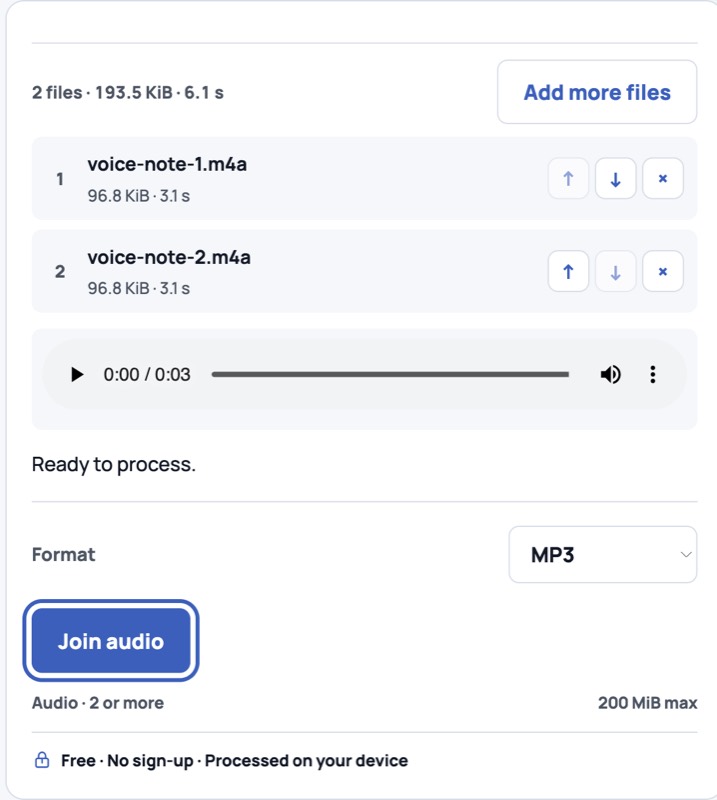
- Set the order with the arrow buttons.
- Download the joined file.
Formats and limits
Merge two or more audio files in your browser. Join MP3, M4A, WAV, FLAC, OGG and Opus, set the order, and download one file. Nothing is uploaded.
- Input
- MP3 · M4A · AAC · WAV · FLAC · OGG · Opus
- Files
- 2 or more
- File limit
- 200 MiB
- Processing
- In your browser, no upload
- Output
- MP3 · WAV
Processing facts
- No upload — the file stays in your browser.
- 200 MiB · File limit
- Phone transfer files expire after 1 hour.
How the audio is joined
The tool decodes every file to raw PCM, resamples it to a common sample rate, appends the samples in list order, and encodes the result as MP3 or WAV. There are no gaps or crossfades between files.
Mixed formats and sample rates
MP3, M4A, AAC, WAV, FLAC, OGG and Opus inputs can be mixed. The first file sets the output sample rate; if MP3 cannot store that rate, the join uses 48 kHz. Mono files are written to both channels of the stereo output.
Keep a copy of the sources
Joining creates a new file and never changes the originals. Keep them until you have checked the export, especially when the sources use different loudness levels.
Order and gaps
Files are joined in list order, and the arrows move a file up or down before you export. There are no gaps or crossfades between files, so two voice notes join seamlessly while music cuts abruptly at the seam. Add a second of silence to the end of a file beforehand if you need breathing room.
Loudness differences
If one file is much louder than the next, the seam is audible even when the join itself is clean. Normalize each part before joining, or run the joined file through the audio converter with normalization enabled. Matching levels matters more than matching formats for how natural the result sounds.
When joining is the wrong tool
To put a new soundtrack on a video, use the replace-audio page. To cut one recording, use the audio trimmer. To change a format, use the audio converter. Joining only puts files end to end in the order you give it, and it cannot overlap them.
How many files and how large
Two or more files can be joined, with each source capped at 200 MiB. Every file is fully decoded before the result is encoded, so a long batch takes longer than a short one and uses more memory on a phone. For a very long join, work on a computer and keep the individual parts until the export checks out.
Choosing the output format
The joined file is written as MP3 or WAV, which you choose before export. MP3 is small and plays everywhere, while WAV keeps every sample for further editing. Mixing formats in the input is fine — the output format decides what the result becomes, not the first file in the list.
Joining files from different devices
Recordings from different phones can differ in sample rate and channel layout. The join resamples everything to one rate, so it plays cleanly, but the tone of one segment may still differ. Normalize before or after when the mismatch is audible. Write down the order you used, so the next join is repeatable.
Common questions
Can I join MP3 files without uploading them?
Yes. The files are decoded and joined in your browser. Nothing is sent to a server.
What order will the tracks be in?
The list order, from top to bottom. Use the arrow buttons to move a file up or down before joining.
Can I join files with different formats and sample rates?
Yes. Each file is decoded and resampled to one common sample rate, then written to the output format you choose.
Does joining reduce audio quality?
MP3 output decodes each source and encodes it once at 192 kbps. WAV output is uncompressed. Choose WAV when you want to avoid another lossy step.
How many files can I add?
Two or more, up to 200 MiB each. The total output must fit in browser memory, so close other tabs when joining long recordings.