 AudioRemover
Audio Converter
Convert audio or extract the soundtrack from a video, normalize loudness, add fades and export MP3, M4A, WAV, FLAC or OGG.
- MP4 · MOV · WebM · MKV · M4V · MP3 · M4A · AAC · WAV · FLAC · OGG · Opus
- 100 MiB max
- No upload
or drag an audio or video file here
Free · No sign-up · Processed on your device
How to use it
- Choose an audio or video file.
- Choose the format and optional processing.
- Download the audio.
Formats and limits
Convert audio to MP3, M4A, WAV, FLAC or OGG. Normalize loudness, add fades and export without uploading.
- Input
- MP4 · MOV · WebM · MKV · M4V · MP3 · M4A · AAC · WAV · FLAC · OGG · Opus
- File limit
- 100 MiB
- Processing
- In your browser, no upload
- Output
- MP3 · M4A · WAV · FLAC · OGG
Processing facts
- No upload — the file stays in your browser.
- 100 MiB · File limit
- Phone transfer files expire after 1 hour.
What the converter changes
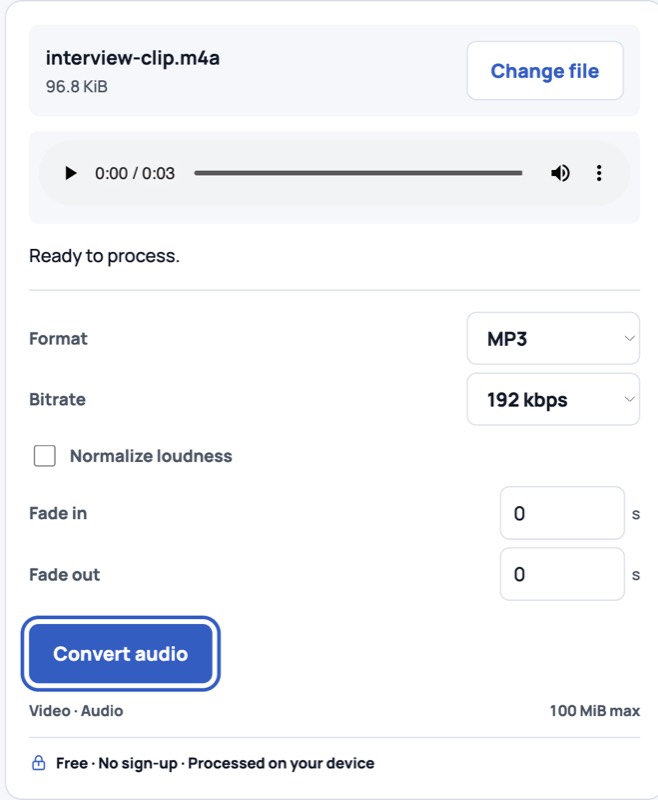
The input is decoded, optionally normalized, and encoded into the format you pick. MP3 and OGG are lossy and small; WAV and FLAC keep the samples intact but take far more space. Bitrate applies to the lossy formats: 128 kbps is fine for speech, 192 kbps suits most music, and 256 kbps leaves more room if the file will be edited again.
Normalize loudness
Normalization brings quiet recordings and loud ones to a similar level, so a playlist or a podcast episode does not jump in volume. It applies to the export only; the original file is untouched. Turn it on when you are combining sources, and leave it off when the audio is already mastered and you want to keep its dynamics.
Fades and trimming
Fade in and fade out avoid a hard start or an abrupt ending, which is useful for voice notes, ringtones and short clips. The trim fields cut the file before encoding, so the fade lands where you expect. For repeated jobs, convert once with the settings you like and reuse them rather than rebuilding from scratch.
Choosing between MP3, M4A and WAV
MP3 plays everywhere and is the safest for sharing. M4A is Apple-friendly AAC and sounds better than MP3 at the same size. WAV is uncompressed and best when another tool will process the audio. FLAC is lossless and smaller than WAV but less widely supported, and OGG suits web players.
What happens to a video file
Video files are accepted too: the first audio track is converted and the picture is ignored. If you specifically want the MP3 from a video, the extract page does that with one step. Either way, the video on your device is read locally and never uploaded.
About quality loss
Encoding to a lossy format always discards some detail, and converting MP3 to MP3 a second time compounds it. When possible, start from the original recording rather than a compressed copy. If you need the best possible result, export FLAC or WAV and keep the MP3 for listening.
Supported inputs
MP3, M4A, AAC, WAV, FLAC, OGG and Opus files are accepted, and video files work through their first audio track. A file with an unusual codec is reported rather than silently converted into something that will not play. If the picker rejects a file, the format or the extension is the first thing to check.
What the converter does not do
It does not split a multi-language video into separate tracks, repair damaged audio, remove background noise or separate vocals from music. Those need dedicated tools. This page changes format, bitrate, loudness, fades and length, and nothing else — knowing that saves time when the problem is elsewhere.
Checking the result
Play the export in the app that will use it, not only in the browser. A player that lacks the codec will fail even though the conversion succeeded, and that is a format problem rather than a conversion problem.
Common questions
How do I normalize audio online?
Choose an audio or video file, turn on Normalize loudness, then export. The original file is not changed.
What is loudness normalization?
It evens out the overall volume to a target level, so quiet and loud recordings play back more consistently.
How do I increase audio volume?
Normalization raises quiet recordings toward the target level and evens out peaks. For precise gain changes, use a desktop editor.
Which formats can I convert?
MP3, M4A, WAV, FLAC and OGG. Input can be audio or a video file with an audio track.
Why can’t I choose a bitrate for WAV or FLAC?
They are lossless formats and do not use a bitrate setting.