 AudioRemover
Audio fades
Soften the abrupt start and end of a recording with volume ramps you set in seconds. The whole file stays on your device.
- MP3 · M4A · AAC · WAV · FLAC · OGG · Opus
- 100 MiB max
- No upload
or drag an audio file here
Free · No sign-up · Processed on your device
How to use it
- Choose an audio file.
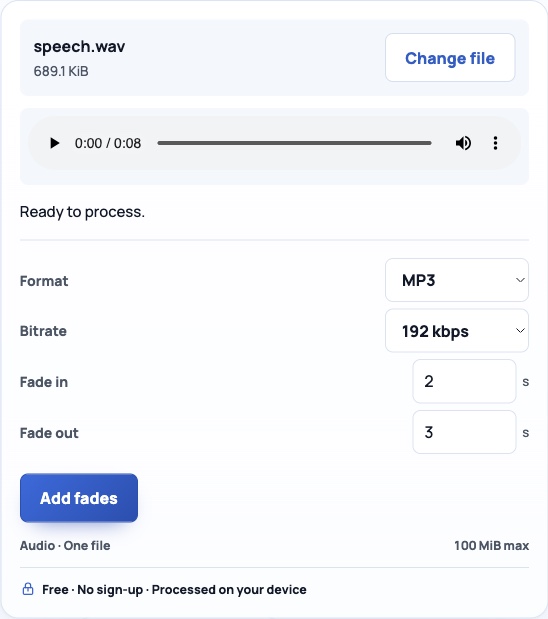
- Set the fade-in and fade-out lengths in seconds.
- Download the faded audio.
Formats and limits
Add a fade in at the start and a fade out at the end of any audio file, in MP3, M4A, WAV, FLAC or OGG. Nothing is uploaded.
- Input
- MP3 · M4A · AAC · WAV · FLAC · OGG · Opus
- File limit
- 100 MiB
- Processing
- In your browser, no upload
- Output
- MP3 · M4A · WAV · FLAC · OGG
Processing facts
- No upload — the file stays in your browser.
- 100 MiB · File limit
- Phone transfer files expire after 1 hour.
What a fade actually does
A fade is a volume ramp. Fade in raises the track from silence to full level over the number of seconds you set, starting at the very beginning of the file; fade out lowers it back to silence so that it lands exactly at the end. The ramp is linear, climbing and descending at a steady rate, which sounds smooth on speech and most recordings. Leaving both values at zero produces a plain format conversion with no fade at all, so the controls stay out of the way when all you want is a re-encode.
Where fades earn their keep
Recordings start and end abruptly: a microphone picks up with a click, a thumb hits stop a moment early, and both moments are audible. A one-second fade in softens the entry and a fade out rounds the exit, which is why fades are standard on podcasts, voice notes, ringtones and any clip that sits next to other audio. Loops benefit twice over, because a hard start and end produce a click at the seam every single time the loop comes around again.
Choosing lengths that sound right
Start with one to three seconds. Short ramps of half a second take the edge off a click without being noticed as a fade at all; longer ramps of three to five seconds suit music beds and ambient layers under narration. A fade out beyond a few seconds makes an ending trail away, which is sometimes exactly the intended effect and sometimes just a loss of impact. Both values are measured from the ends of the file, and a fade longer than the file is not rejected: the fade in runs to the end of the clip and the fade out starts at the beginning, so you get a partial ramp.
Formats and what re-encoding means
MP3, M4A and OGG are lossy: exporting to them re-encodes the audio once, and one pass from a good source is hard to hear. WAV and FLAC are lossless and leave the samples intact, which makes them the right target when the faded file will be cut, normalized or processed again. The bitrate setting applies to the lossy formats only: 128 kbps is enough for speech, 192 kbps suits most music, and 256 or 320 kbps keeps room for further work.
Everything runs in your browser
The file is decoded, faded and encoded locally, and the download is created on your device — nothing is uploaded at any point. The processing engine is FFmpeg compiled for the browser; the page loads it from a public CDN the first time you press the button, and after that it is cached. The 100 MiB limit exists because the entire file has to sit in browser memory while it is rewritten, which is felt first on phones and tablets.
Checking the result
Listen to the first and last five seconds before relying on the export: the entry should swell in rather than click, and the ending should settle rather than stop dead. If a ramp feels too slow or too abrupt, change the number and export again — the original file is never modified, so adjusting costs nothing but a little waiting. Keep the original until the faded copy has proved itself in the player or editor that will actually use it.
Fades and loudness normalization
Loudness normalization lives on the audio converter, which also carries its own fade fields, so a recording that needs both volume leveling and fades can be handled there in a single pass. Doing the two jobs in separate tools means two re-encodes for lossy outputs, and every extra pass on a lossy file compounds. When one pass is possible, prefer it; when the settings need to be tuned one at a time, this page keeps the fade work in focus.
What this tool does not do
There is no waveform or scrubber — the player only plays the file back — and there are no fade shapes: the ramp is linear, not an equal-power or S-curve. It does not fade the middle of a track: the fade in always begins at the start and the fade out always ends at the end. Joining several recordings is the audio joiner’s job, and cutting content from the middle belongs to a full editor. Knowing the boundary saves trial and error.
Common questions
Are my files uploaded to a server?
No. The audio is decoded, faded and encoded inside your browser, and the download is written on your device. Nothing is sent anywhere.
Does adding fades reduce quality?
Exporting to MP3, M4A or OGG re-encodes the audio once, and one pass from a good source is hard to hear. Export WAV or FLAC when the result will be edited again, and always start from the original file rather than a compressed copy.
What happens if I leave both values at zero?
The export is a plain format conversion with no fade at all. The fade fields only change anything when you enter a number of seconds.
Which files and sizes are supported?
MP3, M4A, AAC, WAV, FLAC, OGG and Opus files up to 100 MiB each. The cap exists because the whole file has to fit in browser memory while it is rewritten, which matters most on phones.
Can I fade the middle of a track?
No. The fade in always starts at the very beginning and the fade out always ends at the very end. Cutting or ducking content in the middle is a job for a full audio editor.
How long should a fade be?
One to three seconds covers most speech and voice notes. Half a second just takes the click off a hard start; three to five seconds suits music beds and ambience under narration.