 AudioRemover
Change audio speed
Pick one of five speed steps and download the result. Voices keep their pitch; only the length changes.
- MP3 · M4A · AAC · WAV · FLAC · OGG · Opus
- 100 MiB max
- No upload
or drag an audio file here
Free · No sign-up · Processed on your device
How to use it
- Choose an audio file.
- Pick one of the five speed presets.
- Download the changed audio.
Formats and limits
Speed audio up to 2× or slow it down to 0.5× while the pitch of every voice and note stays exactly the same. No upload.
- Input
- MP3 · M4A · AAC · WAV · FLAC · OGG · Opus
- File limit
- 100 MiB
- Processing
- In your browser, no upload
- Output
- MP3 · M4A · WAV · FLAC · OGG
Processing facts
- No upload — the file stays in your browser.
- 100 MiB · File limit
- Phone transfer files expire after 1 hour.
Speed without the pitch shift
The naive way to change speed — resampling — shifts pitch along with it, so a faster voice turns into a chipmunk and a slower one into a growl. This tool time-stretches instead: the five steps from 0.5× to 2× change how long the audio takes while the pitch of every voice and instrument stays exactly where it was. A forty-minute lecture at 1.25× becomes thirty-two minutes; a fast spoken passage at 0.75× becomes easier to transcribe without anyone sounding deeper.
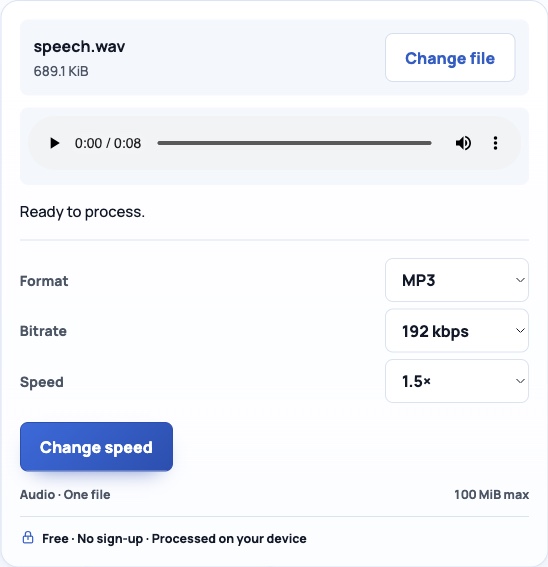
The five presets and what they are for
0.75× and 0.5× slow things down for transcription, language learning and practicing along. 1.25×, 1.5× and 2× speed things up for podcasts, lectures, long meetings and recorded calls. Nearly every real use fits one of these steps: faster review of familiar material, a slower replay of a phrase or a riff. The range deliberately stops at 0.5 and 2, because beyond those points time-stretching becomes audible on transients no matter how it is tuned.
What changes and what does not
Duration scales by the inverse of the speed: 1.5× leaves two thirds of the original length, 0.5× doubles it. Pitch is preserved by design, and apart from the stretch nothing else is applied — no equalization, no loudness change, no trimming. Every export is written from your original file, so trying several presets in a row never compounds: each download starts fresh, and the output name carries the speed you chose, which keeps a folder of attempts sortable.
Formats and one re-encode
MP3, M4A and OGG outputs are lossy and re-encode the audio once; WAV and FLAC keep the samples lossless and are the right target when the result will be cut or processed further. The bitrate options apply to the lossy formats. A single pass from a good source is hard to notice; what is worth avoiding is stacking — stretching an already stretched file processes the previous artifacts a second time and makes them permanent.
Everything runs in the browser
The file is read, stretched and encoded locally, and the download is created on your device — nothing is uploaded at any point. The processing engine is FFmpeg compiled for the browser, loaded from a public CDN the first time you press the button and cached afterwards. The 100 MiB limit exists because the whole file must sit in browser memory while it is rewritten, which is felt first on phones and tablets.
Choosing a preset in practice
For dense podcasts, 1.25× usually stays comfortable while saving real time; 1.5× suits familiar material and monotone lectures; 2× is for scanning a recording for one particular moment rather than listening to it. In the other direction, 0.75× is generally enough for fast speakers in a foreign language, and 0.5× is for deciphering a mumbled phrase or a fast musical passage. If a step feels wrong after one listen, the original is untouched — pick the next one and export again.
Checking the result
Play the export at the points that matter most: the opening seconds, a dense passage, the ending. Faster speech can feel breathless at 2× and dragging at 0.5×, and the right step is a matter of material and ear rather than a rule. Because every export is written from the untouched original, switching presets costs nothing but a little waiting, and comparing two exports side by side is the fastest way to settle the choice.
When you actually want a pitch change
Slowing a recording to transcribe it should keep the pitch; slowing it for a spooky voice, or speeding it for a chipmunk effect, should not. Those effects come from resampling — replaying the same samples at a different rate — which is a different process from time-stretching and belongs to a different tool. This page deliberately does not offer it: mixing the two into one control is exactly how a plain speed change ends up sounding wrong with no obvious setting to blame.
Common questions
Are my files uploaded to a server?
No. The stretch and the re-encode both happen in your browser, and the download is written on your device. Nothing is sent anywhere.
Does the pitch change with the speed?
No. The engine stretches time without resampling, so a 1.5× voice talks faster at the same pitch and a 0.75× voice slower at the same pitch. No chipmunk, no growl.
Why are there only five presets?
0.5×, 0.75×, 1.25×, 1.5× and 2× cover the range where time-stretching still sounds clean. Beyond those points the processing becomes audible as smearing on consonants and doubling on attacks, and offering 4× would mean shipping an artifact, not a feature.
Which files and sizes are supported?
MP3, M4A, AAC, WAV, FLAC, OGG and Opus files up to 100 MiB each, exported as MP3, M4A, WAV, FLAC or OGG. The whole file has to fit in browser memory, which is why the cap exists.
Does the tool reduce quality?
Lossy exports re-encode once, which a single pass from a good source barely shows. What is worth avoiding is stacking passes: speeding up an already sped-up file stretches the stretch artifacts again. Export each attempt from the original.
Can I use it on a video file?
No, this page takes audio files only. Save the soundtrack from a video first with the extract tool, then change the speed of the audio it produces.