 AudioRemover
Merge videos
Add your clips, put them in order, and download one file with the original picture and sound untouched.
- MP4 · MOV · WebM · MKV (same codec)
- 500 MiB max
- No upload
or drag two or more video files here
Free · No sign-up · Processed on your device
How to use it
- Add two or more video clips.
- Move them into the order you want.
- Download the merged video.
Formats and limits
Join two or more video clips into one file in the order you choose, by copying the streams instead of re-encoding them. Nothing is uploaded.
- Input
- MP4 · MOV · WebM · MKV (same codec)
- Files
- 2 or more
- File limit
- 500 MiB
- Processing
- In your browser, no upload
- Output
- MP4 · MOV · WebM · MKV
Processing facts
- No upload — the file stays in your browser.
- 500 MiB · File limit
- Phone transfer files expire after 1 hour.
How a lossless join works
A video file is a container holding encoded packets. Merging here means writing those packets into a new container in order, adjusting their timestamps by the length of the clips before them, without ever decoding a frame. That is why the tool is fast even for large files and why the result keeps the original quality exactly: no generation loss, no change in bitrate, no re-encoding of the picture.
Matching codecs before you merge
Every clip has to share the same video codec and the same audio codec, because the output has a single stream of each. Mixing an HEVC clip with H.264 produces an error rather than a broken file. The fix is one step: run the outliers through the video converter so all clips end up H.264 in MP4, or all VP9 in WebM, then merge. The converter can remux when the codec already fits the container, so the conversion is often lossless as well.
Why resolution and frame rate still matter
The merge does not resize anything, so a 720p clip and a 1080p clip in one file means the player switches resolution at the seam. Most players handle it, but the result looks inconsistent and some editors refuse such a track. Frame rate is the same story: variable timing at the join is visible as a stutter. Converting every clip to the same resolution and frame rate before merging takes a minute and removes both problems.
Ordering and reordering clips
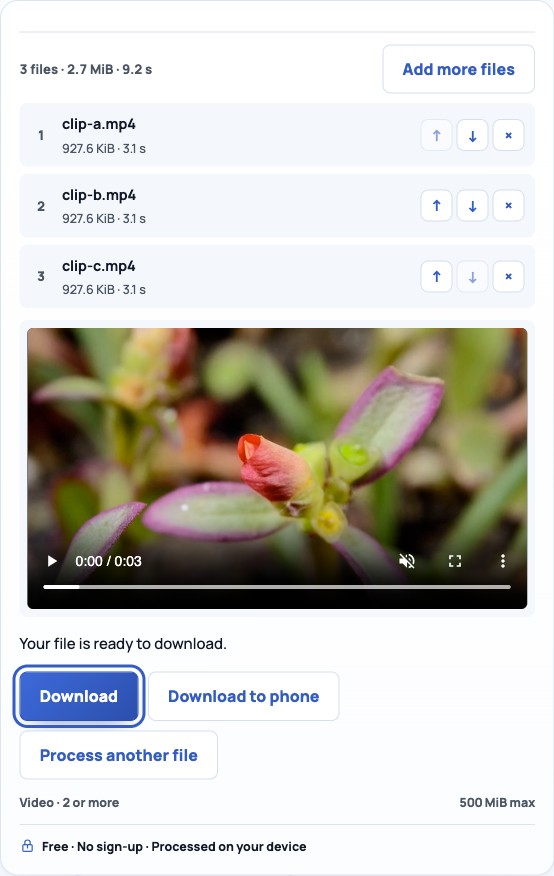
The list is the film. Move clips with the arrow buttons until the sequence reads correctly, and remove a mistaken addition before exporting. Removing a clip and adding it again puts it at the end, so check the numbering before downloading. The merged file follows the list exactly; there is no hidden sorting by date or name.
What survives and what does not
Picture, sound and timing are copied faithfully. What does not travel are per-file metadata such as recording date, GPS tags and chapters, because the merged file is a new document. Subtitles embedded as separate tracks are not carried over either; extract them first if you need them. The output container follows the first clip, so an MP4 first in the list produces an MP4.
File size and memory
The merged file is close to the total size of the clips, which is good for quality and demanding for memory: a phone with three 300 MiB clips may struggle to hold all of them at once. The 500 MiB per-file limit is a memory guard, not a policy. On a phone, merge in pairs and then merge the results, or work on the computer for longer footage.
Checking the seam
Open the download and play across every join: the sound should continue without a click, and the picture should not flash black or jump size. If a clip was recorded with a different audio level, the volume will step at the seam — that is a recording difference the merge cannot fix, and the audio converter can normalize it afterwards. Keep the originals until the merged file has played through.
What this tool is not
It is not an editor. It cannot cut clips, change their order after export, add titles, change the resolution, or produce transitions. Those need re-encoding or frame-level editing, which is a different tool. What it does — joining same-format clips without touching the picture — is the one job nearly every recording of a meeting, a lecture or a game session needs, and doing it losslessly is what keeps the archive intact.
Common questions
Are my videos uploaded to a server?
No. Each clip is read, its packets are copied into the new file, and the result is written in your browser. Nothing leaves your device, and the page keeps working offline once loaded.
Does merging reduce quality?
No. The video and audio streams are copied packet by packet without decoding or re-encoding, so the picture and sound in the output are bit-for-bit what came out of the sources. The merged file is roughly the sum of the clips, minus a little shared overhead.
Why must all clips use the same codecs?
A single track in one file can only hold one codec configuration. Copying an H.264 clip next to a VP9 clip into the same stream would produce a file that players cannot decode. When the codecs differ, the tool stops and asks you to convert the odd clips first.
Why does every clip need an audio track?
The join builds one audio stream from the clips in order, so a clip without audio has nothing to contribute and would leave a silent hole the length of that clip. If a clip is silent, add a silent track or an audio file to it first, then merge.
What happens with different frame rates?
The merge copies frames as they are, so mixing 30 fps and 60 fps clips produces a file whose frame timing jumps at the seam. Players usually cope, but movement can look uneven. For a clean result, convert all clips to the same frame rate and resolution before merging.
Can it add transitions or fade between clips?
No. This is a lossless join: the last frame of one clip is followed directly by the first frame of the next. Cross-fades, dissolves and titles require re-encoding the frames around the join, which belongs to a video editor.