 AudioRemover
Video to GIF Converter
Turn a video into a GIF or animated WebP. Pick a short range, frame rate and width, then download the animation.
- MP4 · MOV · WebM · MKV · M4V
- 100 MiB max
- No upload
or drag a video here
Free · No sign-up · Processed on your device
How to use it
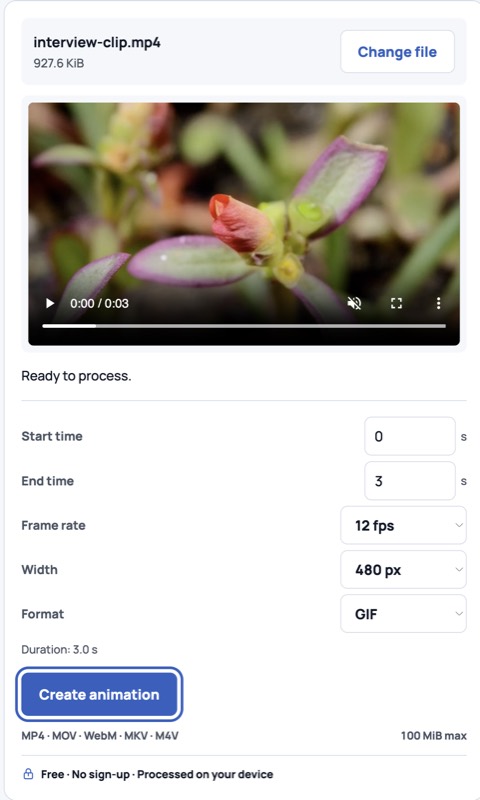
- Choose a video from your device.
- Set the range, frame rate and width.
- Download the GIF or WebP.
Formats and limits
Make a GIF from a video in your browser. Convert MP4 to GIF, WebP or animated WebP.
- Input
- MP4 · MOV · WebM · MKV · M4V
- File limit
- 100 MiB
- Processing
- In your browser, no upload
- Output
- GIF · WebP
Processing facts
- No upload — the file stays in your browser.
- 100 MiB · File limit
- Phone transfer files expire after 1 hour.
Frame rate and width decide the size
An animation stores every frame separately, so the file grows with frames multiplied by pixels. 10 to 15 fps at 480 px wide is the practical range for chat and social posts; 20 fps at 720 px can be many times larger. When the result is too heavy, drop the frame rate before the width — motion matters less than sharpness on a small screen.
GIF or animated WebP
GIF is accepted everywhere but limited to 256 colours, which is why gradients and skin tones band. Animated WebP keeps far more colour at a smaller size and plays in every current browser and most chat apps. Choose WebP when the destination supports it, and fall back to GIF for older software or strict upload rules.
Pick a short excerpt
The animation is built from the start and end fields rather than the whole file. Three to five seconds is usually enough for a reaction or a step in a tutorial, and every extra second multiplies the frame count. Select the moment first, then experiment with frame rate and width.
Why the first run is slow
The converter downloads a media engine the first time it runs; later conversions start straight away because the browser has cached it. Nothing about your video is uploaded while that happens — the engine executes inside the page, and the file stays on your device.
When a video is better than a GIF
For anything longer than a few seconds, or anything with sound, share a short MP4 instead. GIFs carry no audio, cannot be paused or scrubbed cleanly, and are far larger per second than modern video. A GIF is right for a looping reaction, an inline preview or a place that only accepts images.
What the tool needs from the source
Any MP4, MOV, WebM, MKV or M4V up to 100 MiB works, and the clip is decoded in the browser. Seeking to the middle of a long video is slower than starting at the beginning, so trim the interesting section first when the source is more than a few minutes long. A short source also keeps the frame count, and therefore the file size, predictable. Start with the shortest usable excerpt and raise the settings from there. The panel shows the resulting duration before anything runs.
Loops and playback
An animated GIF loops by default, which is why a subtle three-second movement reads better than a full sentence. Avoid a hard cut in the middle: a loop that jumps is more distracting than a still image. Pick a moment where the start and the end look alike.
Captions and alt text
GIFs carry no captions and no alt text of their own. If the animation conveys information, describe it in the surrounding post and, where the platform supports it, in the alt text. A silent loop of a menu or a step is easy to miss for someone using a screen reader, and a short sentence in the post fixes it.
Common questions
How do I make a GIF from a video?
Choose a video, set the start and end time, pick GIF or WebP, then export. The tool adds no watermark.
Can I convert a video to WebP or animated WebP?
Yes. Choose WebP in the format control; the export is an animated WebP file.
Can I export a GIF without a watermark?
The tool does not add a watermark. Any watermark in the output comes from the source video.
Why is there no sound?
GIF and animated WebP do not carry audio.
How long can the clip be?
Keep it under 20 seconds. Longer clips produce very large files.