 AudioRemover
Video Bitrate Calculator
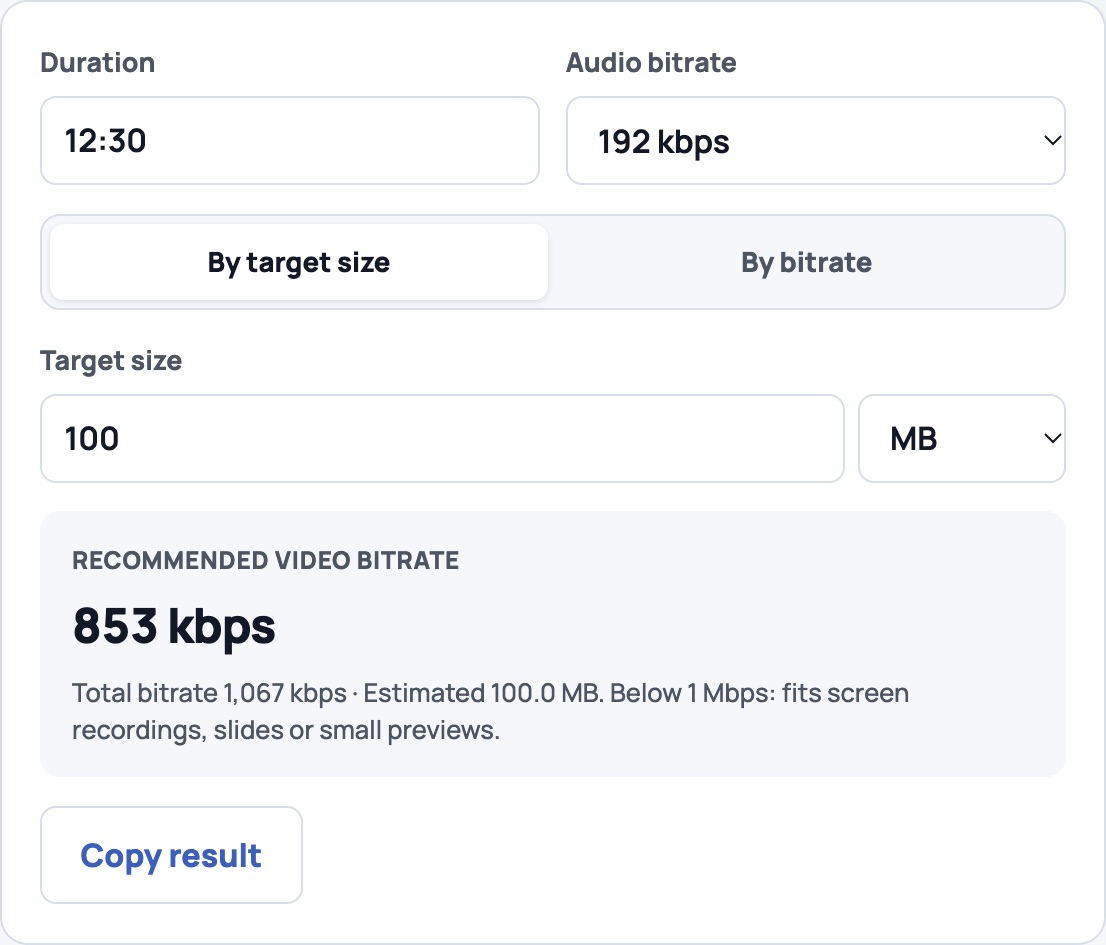
Enter the duration and the size you need, and get a video bitrate you can paste into any encoder.
- No upload
Recommended video bitrate
—
Copied
How to use it
- Enter the duration as mm:ss or h:mm:ss.
- Set the target size and the audio bitrate.
- Copy the video bitrate into your encoder.
Formats and limits
Work out the video bitrate needed for a target file size, or estimate the size of a given bitrate. Runs locally in your browser.
- Processing
- In your browser, no upload
- Output
- kbps · MB · MiB
How the calculation works
Size is bitrate multiplied by time. At 1,000 kbps, one second costs 1,000,000 bits, or 125,000 bytes, so a minute is about 7.5 MB. The calculator runs that formula backwards: convert the target size to bits, divide by the duration, subtract the audio bitrate, and reserve 2% for container overhead. The result is the video bitrate to set in your encoder. Switching between MB and MiB matters: MB is 1,000,000 bytes and MiB is 1,048,576, a difference of about 5% on large files. Platforms usually quote MB, while some desktop tools show MiB.
Bitrate ranges by resolution
For H.264, 720p normally lands between 2 and 4 Mbps, 1080p between 4 and 8, 1440p between 8 and 16, and 4K between 20 and 40. HEVC and AV1 reach similar quality at roughly half those numbers. Resolution is only half the story: motion, film grain, noise and how the source was recorded change the number a lot. A slide deck recorded at 1080p compresses far below 4 Mbps, while handheld 4K footage of foliage can need the top of its range.
Why the result is a starting point
Consumer encoders use variable bitrate. Simple scenes get fewer bits and complex scenes more, with the average settling near your target; a single pass can overshoot by a few percent, while two-pass encoding tracks the size more closely. Leave 5 to 10% headroom when a platform enforces a hard cap, because it may reject the file or re-encode it at a lower quality. The calculator gives you a ceiling to aim at, not a promise about the exact byte count.
How much the audio takes
Audio shares the same budget. Speech is fine at 96 to 128 kbps, stereo music at 192, and 256 to 320 for material that will be listened to closely. A 320 kbps track on a ten-minute clip is about 24 MB, which can be a fifth of a 100 MB target. If the destination mutes or replaces the audio, choose the no-audio option and give the whole budget to the picture.
Using the number with an encoder
In FFmpeg, a 4,850 kbps result maps to -b:v 4850k. In a desktop editor, switch from a quality slider to a specific bitrate and enter the value. Hardware encoders and streaming tools sometimes label the field kbps and sometimes bits per second, so divide by 1,000 when the field expects millions. After the first export, check the real file size before sending, because encoders differ by a few percent even at the same setting.
What the calculator leaves out
The estimate assumes one audio track, an average bitrate, and no subtitles. Additional audio tracks, chapters, attachments and subtitle tracks add size. Variable frame rate footage makes duration-based estimates less exact, and metadata can add a few kilobytes. For a rough target these differences are small; when a hard limit matters, encode once, measure the result, and adjust the video bitrate by the percentage you missed.
Common questions
Can I use the result directly in my encoder?
Yes. Put the video bitrate into a two-pass or average-bitrate field, keep the audio at the bitrate you entered, and export. When a platform enforces a hard file limit, aim about 5% below it so the encoder has room to overshoot.
Why is the exported file slightly larger than the estimate?
The calculator reserves 2% for container overhead. Real files also carry headers, metadata and variable-bitrate overshoot, so a difference of one to three percent is normal. Extra audio tracks or subtitles add more.
Which audio bitrate should I choose?
Use 96 to 128 kbps for speech, 192 for stereo music, and 256 to 320 when the sound will be listened to closely. Choose the no-audio option when the destination mutes the file anyway, and give the whole budget to the picture.
What is the difference between MB and MiB?
MB is decimal: 1,000,000 bytes. MiB is binary: 1,048,576 bytes. The gap is about 5% on large files. Most platforms quote MB, while some desktop tools and operating systems show MiB.
Does this tool upload my video?
No file is needed. The calculator only does arithmetic in the page, so nothing leaves your device and no clip is processed.