 AudioRemover
Resize video
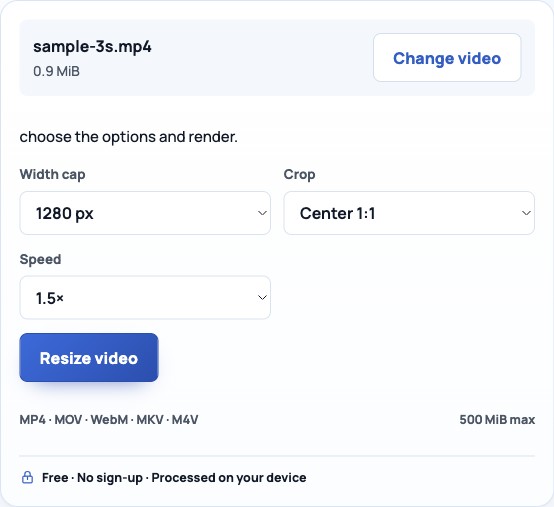
Pick a width cap and download a resized MP4. Crop shape and speed are optional extras on the same page, and the original stays on your device.
- MP4 · MOV · WebM · MKV · M4V
- 500 MiB max
- No upload
or drag an MP4, MOV, WebM, MKV or M4V here
Free · No sign-up · Processed on your device
How to use it
- Choose a video from your device.
- Pick a width, a crop shape and a speed.
- Download the MP4.
Formats and limits
Resize a video by capping its width in the browser, with optional center crop and speed controls when the clip needs them. Nothing is uploaded.
- Input
- MP4 · MOV · WebM · MKV · M4V
- File limit
- 500 MiB
- Processing
- In your browser, no upload
- Output
- MP4 (H.264 + AAC)
Processing facts
- No upload — the file stays in your browser.
- 500 MiB · File limit
- Phone transfer files expire after 1 hour.
Resize first, with crop and speed as extras
The width cap decides how many pixels the output carries, and it is the reason most people open this page. The crop shape and the speed are optional: leave them at the default and the frame is only resized. When they are used, all three combine in one encode — cropped to the chosen shape, scaled to the width cap, and retimed with the audio stretched to match. Doing everything in a single pass is deliberate: each additional pass on an already-compressed file costs a little more quality.
Choosing a width cap
The presets map to common targets: 1920 for full HD uploads, 1280 for 720p, 854 for 480p and 640 for quick sharing on slow connections. If the source is smaller than the cap, nothing is scaled up. Keeping the original width is the right choice when the video will be watched on a large screen; dropping to 1280 is usually invisible on a phone and saves a lot of bytes when combined with a compression step.
Cropping to a shape
The three crop modes are centered and fixed: a 1:1 square for feeds, a 9:16 vertical frame for stories, and a 16:9 frame for widescreen platforms. Each one cuts away whatever falls outside the middle of the picture, so headlines near an edge and faces at the side disappear. Watch the first seconds of the result to confirm the subject stayed inside the frame before relying on it.
Speed without the chipmunk
Changing playback speed naively shifts pitch with it: faster becomes a squeak and slower becomes a growl. Here the picture is retimed and the audio is stretched independently, so 0.5× to 2× keeps voices natural. Half speed doubles the duration, double speed halves it, and in both directions the audio and picture stay aligned because both are derived from the same rate change.
The cost of re-encoding
Every option on this page requires encoding all the frames again, which takes time and memory in proportion to length and resolution. A short clip finishes in seconds; a long recording can take minutes and, on a phone, run out of memory. Trim first when only part of the footage matters — a trimmed clip resizes far faster and keeps more quality per pass.
Checking the result
Play the first few seconds and the part where the subject is closest to the edge of the frame. Confirm the audio is in sync, that nothing important was cropped, and that faster motion has not become choppy. If the framing is wrong, change the crop mode or leave it off and resize only; the original is untouched, so another attempt costs only the encode time.
Where this fits with the other video tools
Use the trimmer when you need to remove time without touching the picture — that cut is lossless. Use the format converter to change the container while copying the streams. Use this page when the frame itself has to change: a different resolution, a square or vertical crop, or a different speed. Use compression afterwards if the result is still too large for its destination.
What this tool does not do
It does not add a watermark, burn in subtitles, grade colours or stabilise shaky footage; it does not give you a freehand crop, and it does not touch the audio level. It always outputs MP4 with H.264 and AAC, so WebM, HEVC and other targets belong to other tools. Those limits keep the output predictable and the page honest about what one pass can do.
Common questions
Are my videos uploaded to a server?
No. The file is decoded, transformed and encoded inside your browser, and the result is written on your device. Nothing leaves the machine, including footage you are not ready to share.
Does resizing lose quality?
Yes, a little, because every change here means one re-encode at high quality. Quality loss compounds with every pass, so start from the original file and make all the changes in a single run rather than resizing an already resized copy.
Does speeding up change the pitch?
No. The video is retimed with setpts and the audio is stretched with atempo, which keeps voices at their original pitch. A 1.5× clip sounds like the same people talking faster, not like chipmunks, and audio stays in sync with the picture.
Where does the crop happen?
Every crop is centered: the middle of the frame is kept and the sides or top and bottom are cut. There is no pan or offset control, so if the subject sits near an edge, crop it in an editor or record with the framing you need. The cropped picture is then scaled to the width you chose.
Can I add a watermark or text here?
No. Drawing text needs font files shipped with the encoder, which this page deliberately does not load. Use a video editor for captions, watermarks and titles; this tool changes size, framing and speed only.
Does a higher resolution make the file bigger?
The width options are caps, and the tool never upscales, so a 480p clip stays 480p even with the 1080p cap. Upscaling would not add detail — it would only make the file larger and softer. Choose a cap at or below the source resolution.