 AudioRemover
Video screenshot
Scrub to the moment you want and download a still frame at full resolution, without screen-capture artefacts.
- MP4 · MOV · WebM · M4V
- 500 MiB max
- No upload
or drag an MP4, MOV, WebM or M4V here
Free · No sign-up · The frame is captured on your device
How to use it
- Choose a video file.
- Enter a time or pause on the frame you want.
- Download the image.
Formats and limits
Pause a local video at any moment and save that frame as an image at the source resolution — PNG, JPEG or WebP. Nothing is uploaded.
- Input
- MP4 · MOV · WebM · M4V
- File limit
- 500 MiB
- Processing
- In your browser, no upload
- Output
- PNG · JPEG · WebP
Processing facts
- No upload — the file stays in your browser.
- 500 MiB · File limit
- Phone transfer files expire after 1 hour.
Why a real frame beats a screen capture
A screenshot of a playing video captures the window around it: player controls, a scaled-down picture and whatever colour profile the screen applies. Sampling the frame itself captures the pixels as they are stored — no controls, no scaling, no overlays from the operating system. What you get is the frame at the exact resolution of the file, which is what a thumbnail, a slide or a reference image actually needs.
Finding the moment
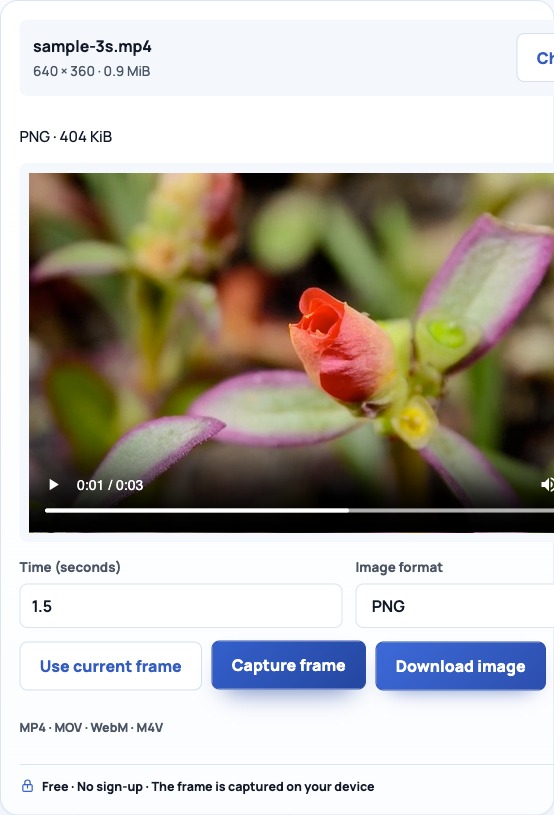
The panel plays the video with the browser’s own controls, so you can scrub, pause and listen your way to the frame you want. Then either type a timestamp to a tenth of a second, or press the button that captures the frame currently on screen. Playing first and typing the time afterwards is the fastest workflow: the preview shows which second holds the shot, and the capture happens at the size of the source rather than the size of the preview window.
Formats and what each one costs
PNG keeps every pixel and is the right choice for interface recordings, slides and anything with text or flat colour, at the price of a large file. JPEG at high quality is far smaller and opens in every program, which suits photographs and video stills meant to be shared. WebP is often the smallest of the three at similar visual quality and is ideal for a website, though a handful of older tools still cannot open it. The frame is not re-encoded twice: the canvas is captured once into the format you picked.
What same-resolution means
The canvas is set to the video’s intrinsic width and height, so a phone clip recorded in portrait gives a tall image and a 4K clip gives eight megapixels of detail. Nothing is cropped to a fixed aspect ratio and nothing is stretched. If the frame will be used as a poster image for a player, that full-resolution still is exactly what is wanted; if it will be shown at 300 pixels wide, export the full image anyway and let the layout shrink it, so the option to reuse it stays open.
Why MKV is not on the list
Browsers play MP4, MOV, WebM and M4V directly, but Matroska is not a format the <video> element reliably supports. The tool detects the problem and says so instead of failing silently. The fix is one step: run the file through the video converter, which remuxes MKV to MP4 without re-encoding the picture, then capture frames from the MP4. Quality is unchanged because the underlying codec is the same.
Seeking, keyframes and accuracy
Video is stored as keyframes plus differences, so asking a player for an arbitrary time means decoding forward from the nearest keyframe. Browsers make that trade-off in your favour for speed, which is why a request for 12.400 seconds can land on the frame at 12.367. For a thumbnail that difference is invisible; for a frame-exact extraction you need a tool that decodes to precise timestamps, and that is a job for FFmpeg rather than a page.
Local processing and limits
The file is read from your device, played from an object URL and never uploaded. The 500 MiB limit reflects memory rather than policy: the browser holds the file and the decoded frames while you scrub, and a phone will run out of headroom before a desktop does. Very long or high-bitrate files may also stutter when seeking, which is a sign to trim the clip first and capture from the shorter version.
When to use another tool
Need many stills at a fixed interval? The video to frames tool saves a sequence and packs it into a ZIP. Need to change the picture — crop, rotate, resize — capture the frame first and edit the resulting image with the regular image tools. Need to cut the clip itself? That is the trimmer. Keeping those jobs separate means each one stays fast and each tool’s output is predictable, instead of one page with a dozen modes that all behave slightly differently.
Common questions
Are my files uploaded to a server?
No. The video is played from a local object URL and the frame is drawn to a canvas inside the page; the image is downloaded from memory. Nothing leaves your device.
Which video formats work?
MP4, MOV, WebM and M4V files that your browser can play, up to 500 MiB. MKV is not supported, because browsers cannot play Matroska — convert it to MP4 with the video converter first, then capture frames from the MP4.
What resolution is the image?
Exactly the video’s own resolution: a 1080p clip produces 1920 × 1080 pixels and a 4K clip produces 3840 × 2160. There is no upscaling and no letterboxing, and a rotated phone video comes out in the orientation it plays in.
Why is the frame slightly off the time I typed?
A browser seeks to the nearest frame it can decode quickly, not to an exact timestamp. The result is usually within a frame or two, which is fine for thumbnails and stills but not frame-accurate. Exact frames require a decoder such as FFmpeg.
PNG, JPEG or WebP?
PNG is lossless and best for graphics, slides and text; JPEG at high quality is small enough to share and opens everywhere; WebP is smaller than JPEG at similar quality but a few older programs cannot open it. For a still of a real scene, JPEG or WebP is usually the right call.
Can I capture several frames at once?
This page captures one frame per download. For a sequence at fixed intervals, use the video to frames tool, which saves many stills and packs them into a ZIP.