 AudioRemover
Trim Video Online
Cut a video online without re-encoding: set the start and end time, then save a shorter copy with the original picture.
- MP4 · MOV · WebM · MKV · M4V
- 500 MiB max
- No upload
or drag a video here
Free · No sign-up · Processed on your device
How to use it
- Choose a video from your device.
- Set the start and end time.
- Download the trimmed copy.
Formats and limits
Use this online video trimmer to cut MP4, MOV, WebM, MKV and M4V without re-encoding. Keep original quality.
- Input
- MP4 · MOV · WebM · MKV · M4V
- File limit
- 500 MiB
- Processing
- In your browser, no upload
- Output
- Same container as the source
Processing facts
- No upload — the file stays in your browser.
- 500 MiB · File limit
- No re-encode — the picture is copied, so it often finishes in seconds.
- Phone transfer files expire after 1 hour.
Set the cut points
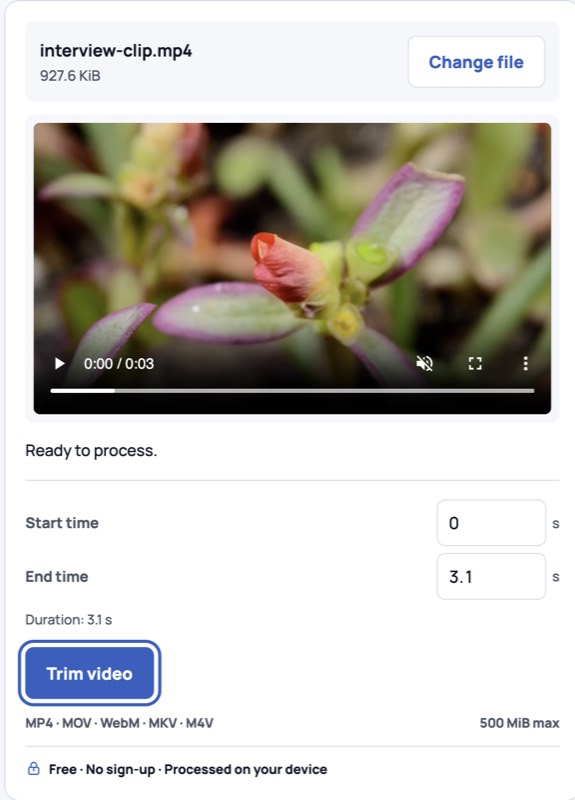
The panel takes a start and an end time in seconds, and the duration line updates as you type, so the length of the clip is visible before anything runs. Values beyond the end of the source are clamped to the file, so a typo cannot produce an empty export. The cut is aligned to keyframes, which is why the result may begin a fraction of a second before the time you asked for.
Why a cut can start slightly early
Compressed video stores a full frame only every few seconds and describes the frames in between by difference. A lossless cut has to begin on one of those full frames, so the export can include a short lead-in. That is the price of not re-encoding. A frame-exact cut requires re-encoding the frames around the cut, which changes quality slightly and takes much longer.
Audio and subtitle tracks
Audio is copied together with the picture, so the trimmed file keeps the original sound, its codec and its bitrate. Subtitle tracks are not carried over; export them first with the subtitle tool if you need them. The export keeps the source container unless you choose another one, and a compatible codec is what makes that possible.
Trim before you convert
Cutting first saves work later: a converter then only has to remux the part you keep, and uploads or transfers stay small. If the source is an MKV with a codec that does not fit MP4, trim it as MKV, then convert the short clip. Trimming also makes a long recording practical to preview on a phone.
Check the first and last second
Play the beginning and the end of the export before deleting the original. Confirm the first words are not clipped and that the last frame is where you wanted it. If a sentence is cut, move the boundary and trim again — the source is untouched, so you can repeat as often as needed without losing quality.
What trimming cannot do
It cannot join two clips, remove a section from the middle, or change the picture. Taking out a middle section means two trims followed by a join. Rotating, cropping or resizing requires re-encoding, which is a job for a video editor rather than a lossless cutter.
Trimming a phone recording
Screen recordings and voice memos often arrive as MP4, and the browser can trim them without an app. Phones have less memory than a laptop, though: files up to 500 MiB are accepted, but a long 4K recording may fail or reload the page. Trim large files on a computer and keep the phone for short clips. If the page reloads mid-way, the source file is untouched and you can simply try a shorter file.
What the export keeps
Container, codec, bitrate, frame rate and audio are unchanged; only duration and file size differ. Because nothing is re-encoded, trimming is one of the safest edits you can make before sharing or archiving, and repeating it never degrades the picture. The file also keeps the original name, so add a suffix if you need to keep both versions. That is also why the export starts almost immediately, even for a long recording, and the file size drops with the duration.
Common questions
Is this a lossless video cutter?
Yes. The video and audio streams are copied, so the cut does not re-encode or reduce quality.
Can I cut video online without uploading?
Yes. Your file stays on your device and is processed in your browser. Nothing is uploaded.
Why does the cut start slightly earlier?
A lossless cut starts at the nearest keyframe. The difference is usually a second or two.
Can I trim an MP4 without re-encoding?
Yes. Choose an MP4, set the range, and the export keeps the original encoding.