 AudioRemover
Compress video
Set a size budget or a resolution, and get a smaller MP4 that plays everywhere. The encode runs on your device.
- MP4 · MOV · WebM · MKV · M4V
- 500 MiB max
- No upload
or drag an MP4, MOV, WebM, MKV or M4V here
Free · No sign-up · Compressed on your device
How to use it
- Choose a video from your device.
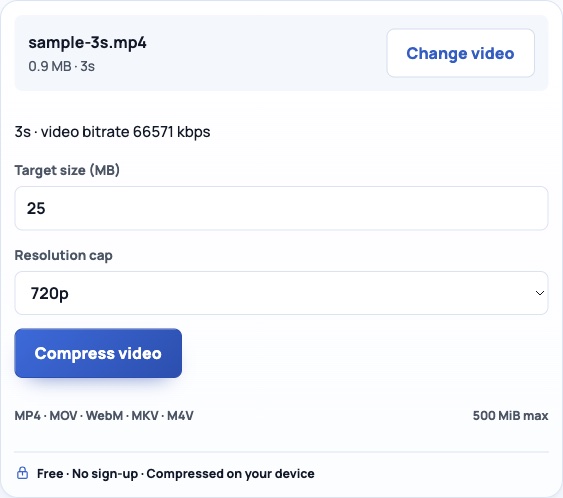
- Set a target size and a resolution cap.
- Download the compressed MP4.
Formats and limits
Shrink a video toward a target size in your browser: pick megabytes and a resolution cap, and the tool re-encodes it to an H.264 MP4. Nothing is uploaded.
- Input
- MP4 · MOV · WebM · MKV · M4V
- File limit
- 500 MiB
- Processing
- In your browser, no upload
- Output
- MP4 (H.264 + AAC)
Processing facts
- No upload — the file stays in your browser.
- 500 MiB · File limit
- Phone transfer files expire after 1 hour.
How a target size becomes a bitrate
You give the tool a size budget and it works backwards. Total bits equal megabytes times eight, divided by the duration in seconds gives the overall bitrate; subtracting 96 kbps for the AAC audio leaves the video budget. A 100 MB target on a ten-minute clip is about 1,330 kbps in total, which is modest for 1080p and generous for 480p. That is why the resolution cap and the size target are chosen together: the cap decides what the budget has to cover.
Why the result is approximate
A professional two-pass encode studies the first pass and distributes bits where they are needed. This tool runs one pass, because two passes would double an already slow job in the browser. The single pass is a decent approximation: scenes with movement and grain need more bits than a talking head, and the encoder can only average the budget across the whole file. Expect a few percent of drift, not an exact number, and treat the panel’s reported size as the real result.
Reading the resolution cap
The cap is a ceiling, not a target. A 1080p source with the 720p cap is scaled to 1280 by 720 while keeping its proportions; a 480p source with the 720p cap stays 480p because the tool never upscales. Higher resolutions need more bits for the same quality, so dropping the cap lets a fixed budget buy more quality per pixel. For text-heavy screen recordings, keeping the resolution and accepting a tighter bitrate is usually the better trade.
The honest cost of encoding in a browser
Re-encoding is the slowest thing this site does, and the site does it on purpose: it is the only way to change the bitrate. A desktop with a recent CPU handles a few minutes of 1080p in tens of seconds; phones are several times slower and heat up. Leave the tab in the foreground, plug in if the battery matters, and do not start an hour-long film on a phone and walk away expecting a quick result.
When compressing is the wrong move
If the video already uses a codec your destination accepts, remuxing with the format converter changes the container without touching the picture, and that is free. Compressing only makes sense when the file is too large for the destination or the upload limit. Trimming first is usually better than compressing the whole recording: a two-minute highlight compressed aggressively often looks better than a twenty-minute file compressed gently.
Audio and playback compatibility
The output is H.264 video with AAC audio in an MP4, the most widely playable combination there is: phones, browsers, TVs, presentation software and social platforms all accept it. Audio is fixed at 96 kbps and keeps the source channel layout, which is transparent enough for speech and acceptable for music when the picture is the point. Subtitle tracks are not carried into the export, so extract them first if the document needs them.
Checking the compressed file
Play the first minute and a scene with movement, then confirm the audio stays in sync. Compare the reported size with your budget and decide whether one more step is worth the wait. Look for banding in smooth gradients and mushiness in fine texture — those are the first things a tight budget destroys. Keep the original until the compressed copy has been accepted by wherever it is going.
What this tool does not do
It does not cut, join, rotate or add subtitles; it does not produce WebM or HEVC output; it does not run two-pass encodes or per-scene quality. It also does not beat a dedicated desktop encoder on speed. Its job is narrow and deliberate: take a local file that is too big, spend CPU on your own machine, and hand back an MP4 that fits a limit without sending the video anywhere.
Common questions
Are my videos uploaded to a server?
No. The file is read, decoded, encoded and written back inside your browser, and the download is created on your device. Nothing is sent anywhere, which matters for private recordings and footage under an embargo.
Why is compressing a video so slow?
The tool decodes every frame and encodes it again using FFmpeg compiled for the browser. A few minutes of 1080p footage can take tens of seconds on a desktop and several minutes on a phone, because the work happens on your CPU rather than on a server farm. Video editing and compression are simply heavy jobs.
Will the result land exactly on the target size?
Usually within a few percent, but not exactly. The target is turned into a video bitrate based on the clip length, with audio fixed at 96 kbps, and the encode runs once rather than twice. Scene complexity and container overhead mean the final file can come out a little above or below. Adjust the target by one step and re-run if the exact number matters.
What does the resolution cap do?
It scales the picture down proportionally when the source is larger than the cap, and never upscales. Lowering the cap is the gentler way to save bytes: at 720p most footage still looks fine on a phone, while dropping the bitrate alone softens everything. When the source is already smaller than the cap, the picture keeps its size.
How much quality will I lose?
Every re-encode of already-compressed video costs a little, and the target decides how much: generous targets are hard to tell apart, tight ones soften fine texture, faces and text. Screen recordings with text survive better when you keep the resolution and lower the bitrate moderately; camera footage with motion tolerates a lower resolution at the same bitrate.
What if the encode fails on my phone?
Phones run out of memory before they run out of patience: a long or high-resolution clip can crash the tab. Trim the clip to the part you need first, lower the resolution cap, and try again — or move the work to a computer, where the same file is much more likely to finish.