 AudioRemover
Video to frames
Turn a clip into an image sequence by choosing an interval and a range, then download every frame as numbered files in one ZIP.
- MP4 · MOV · WebM · M4V
- 500 MiB max
- No upload
or drag an MP4, MOV, WebM or M4V here
Free · No sign-up · Frames are extracted on your device
How to use it
- Choose a video file.
- Set the interval and the time range.
- Download the ZIP of frames.
Formats and limits
Save a still image from a video at a fixed interval — every 0.5, 1, 2 or 5 seconds — for the whole clip or a time range, packed into a ZIP. Nothing is uploaded.
- Input
- MP4 · MOV · WebM · M4V
- File limit
- 500 MiB
- Processing
- In your browser, no upload
- Output
- ZIP of JPEG or PNG
Processing facts
- No upload — the file stays in your browser.
- 500 MiB · File limit
- Phone transfer files expire after 1 hour.
What you get
One ZIP file with a numbered image for every interval in the chosen range, named frame-0001 upwards in playback order. Choose JPEG for photographs and most footage, or PNG when the frames contain text, diagrams or flat colours that survive only without lossy compression. The files are not resized, so each one carries the video’s full resolution, and the ZIP stores rather than re-compresses them, so extracting is instant and nothing changes between download and disk.
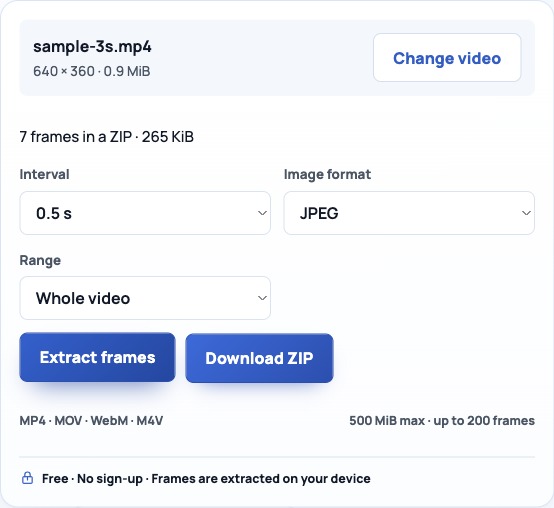
Choosing an interval
The interval decides the character of the result. Half a second gives a dense sequence that reads almost like a flipbook and is useful for checking motion, cuts and on-screen text. One second suits contact sheets, presentation stills and reviews. Two and five seconds are for longer recordings where a handful of representative moments is all that is needed — a lecture, a walkthrough, a surveillance summary. When in doubt, start coarser: it is easier to re-run with a tighter interval on a shorter range than to review two hundred near-identical frames.
The 200-frame cap
Two hundred frames at 1080p is roughly a gigabyte of decoded pixel data before compression, and phones run out of memory well before that number looks large on paper. The cap is therefore about keeping the tab alive: a three-minute clip at one second fits comfortably, a ten-minute clip needs about four seconds, and an hour-long recording needs about twenty seconds — or a time range. The panel reports the frame count before you start, so the arithmetic never has to be a surprise.
Working with a time range
Extracting the whole file is the default, but the range fields let you start and stop where the interesting material is. Skipping a long slate or a title card saves frames and memory, and extracting a ten-second window makes a fine-grained interval affordable: at ten seconds even a 0.5-second interval yields only twenty frames. The range includes the start time, and it also includes the stop time when that lands exactly on the interval, so start the next range one interval later to avoid repeating a frame.
Format and file size
At 1080p, a JPEG frame at 0.9 quality lands somewhere between 100 and 300 KB depending on how busy the picture is, so a ninety-frame sequence is a few tens of megabytes. PNG frames are several times larger, which is the price of keeping text edges and flat colours exact. Choose JPEG for anything photographic, PNG for slides, UI recordings and diagrams, and remember that the ZIP itself adds almost nothing because it stores the frames as they are.
How the browser does the extraction
The tool plays the local file in a hidden video element and seeks to each interval in turn, drawing every landed frame onto a canvas. There is no FFmpeg download and no upload: the browser’s own decoder does the work, which makes the tool fast to start and keeps the half-gigabyte limit within reach. The cost is speed on long ranges — each seek takes a moment — so the panel shows progress and lets you cancel, and the original file is never modified.
Accuracy and what it can miss
Seeking lands on the nearest decodable frame rather than an exact timestamp, typically within a frame or two, and the interval is measured from the start of the range, not aligned to keyframes. For a sequence of stills that is invisible. It does matter when you are looking for a single fast event — a frame of text on screen, an object passing — because a two-second interval can step straight over it. Tighten the interval and narrow the range around the interesting footage when that happens.
When FFmpeg is the better answer
If you need every frame, exact timestamps, or a sequence measured in thousands, use FFmpeg on a computer: it decodes frame-accurately, writes to disk without holding everything in memory, and can output any format. This page is built for the common case — a few dozen to a couple of hundred reference images from a local clip, extracted in the browser in a minute or two. Knowing which case you are in saves both time and a surprising amount of RAM.
Common questions
Are my files uploaded to a server?
No. The video plays locally, each frame is drawn to a canvas in the page and the ZIP is assembled in memory on your device. Nothing is sent anywhere.
How many frames will I get?
The range divided by the interval, plus the first frame — a 3-minute clip at 1 second gives 181 frames. There is a 200-frame cap, so a 5-minute clip at 1 second is refused: use 2 seconds (151 frames) or a shorter range. The cap keeps memory use predictable on phones and tablets.
Which video formats work?
MP4, MOV, WebM and M4V files your browser can play, up to 500 MiB. MKV is not supported because browsers cannot play Matroska; convert it to MP4 first, then extract frames from the MP4.
JPEG or PNG?
JPEG at 0.9 quality is the sensible default: small files, fine for photographs and video stills. PNG is lossless and larger, which is worth it when the frames contain text, diagrams or flat interface colours that JPEG smears.
Does it export every single frame?
No. It samples at the interval you choose, seeking by time, so it captures one frame from each interval rather than every frame in the file. A momentary flash between two samples can be missed. For a genuinely frame-by-frame export, use FFmpeg.
What do the downloaded files look like?
One ZIP containing numbered stills such as frame-0001.jpg, frame-0002.jpg and so on, in playback order. The ZIP is stored without extra compression because the images are already compressed, and it opens in any archiver.