 AudioRemover
Add text to an image
Add text to a photo without installing an editor. Type the words, position them on the picture and export a new image; the original stays on your device.
- JPG · PNG · WebP · AVIF · GIF
- 50 MiB max
- No upload
or drag a JPG, PNG, WebP, AVIF or GIF here
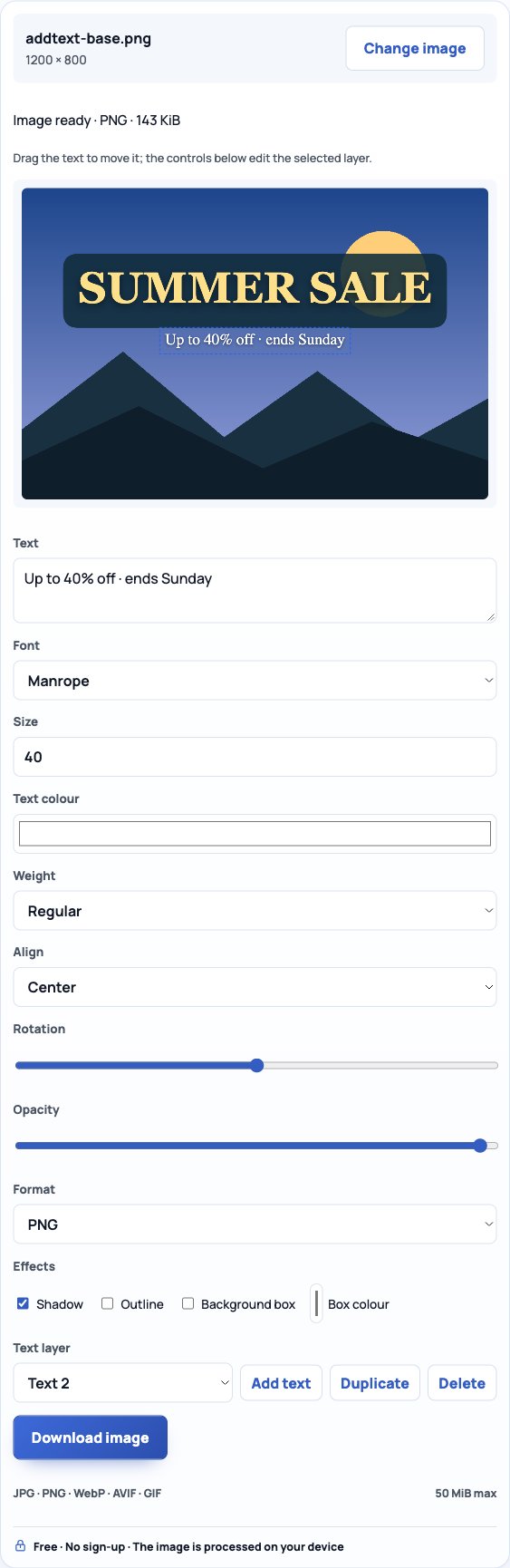
Drag the text to move it; the controls below edit the selected layer.
Free · No sign-up · The image is processed on your device
How to use it
- Choose an image from your device.
- Type the text and adjust font, colour and position.
- Download the image with the text.
Formats and limits
Add text to an image in your browser: type a caption, pick a font, size and colour, drag it into place and download. Free, no upload.
- Input
- JPG · PNG · WebP · AVIF · GIF
- File limit
- 50 MiB
- Processing
- In your browser, no upload
- Output
- PNG · JPEG · WebP
Processing facts
- No upload — the file stays in your browser.
- 50 MiB · File limit
- Phone transfer files expire after 1 hour.
How to add text to an image
Open an image, type in the text field, and the words appear in the middle of the picture. Drag them anywhere, set the font, size and colour, and the download link refreshes after every change. The export keeps the original pixel dimensions, so the text is drawn at the full resolution of the photo rather than at the size of the preview. This is the whole workflow: no layers panel to learn and no project file to save.
Add text to a photo for social posts
A caption on a square or vertical crop is the most common use: a product name on a 1080 × 1080 image, a quote on a 1080 × 1920 story, a price on a photo for a listing. Because the tool keeps the original dimensions, make the crop first with the resize or circle crop tools, then add the text to the final size. That way the type lands where you intended instead of being cut off by a later crop.
Add text on image without installing anything
This is a browser tool, not an application. It works on Windows, macOS, Linux, ChromeOS, Android and iOS in a current browser, including a school or work laptop where installing software is not allowed. There is no account and no upload, so the photo never leaves the machine and the page still works if the connection drops after it has loaded.
A free text editor with no watermark on the export
Many free editors stamp their own logo on the result or hold the full resolution behind a paid plan. This one does not: the downloaded file is your image plus your text, at the source resolution, with no added border, badge or attribution. The page is supported by the rest of the site rather than by a watermark, which is why it can stay free without a sign-up wall.
Fonts, sizes and colour that stay readable
A 120 px word is bold on a 1200 px photo and tiny on a 6000 px one, so choose the size after looking at the preview at a realistic scale. White text disappears on a bright sky and black text disappears on a dark wall; the shadow and outline options exist for exactly that case. Use one font and two sizes — a large headline and a smaller line below — rather than three competing styles.
Placing text on a busy photo
On a detailed background, put the text where the picture is calm: a wall, a stretch of sky, a blurred area or the lower third of the frame. If there is no calm area, turn on the background box: it draws a rounded plate behind the line, in the colour you choose, so the letters stay legible without an outline. Keep the box close to the text rather than filling the frame; a tight plate reads as a caption, a full-width band reads as a banner.
Covering old text with a background box
The background box can also hide lettering that is already in the photo when the area behind it is a single colour: a price on a white label, a name on a plain sign, a watermark on a flat background. Match the box colour to the surrounding pixels, then put the new text on top. This is not a retouching tool: on a gradient, a texture or a face, the patch will be visible, and the blur tool is the honest way to hide information.
Multiple lines and layers
Each text block is a separate layer with its own settings, so a headline can be bold white with a shadow while a subtitle stays smaller and plain. Add text creates a new block in the middle of the picture; Duplicate copies the current one slightly offset, which is useful for repeating a label. Drag a block to select it, or choose it from the layer list, and the controls below always edit the selected one.
Export formats and resolution
PNG keeps the text edges crisp and preserves transparency in the source, which suits screenshots, logos and cut-outs. JPEG is smaller for photographs, with a slight softening around the letters. WebP balances the two and keeps transparency. The export uses the source dimensions, so a 4000 px photo stays 4000 px; resize after adding the text if the destination needs a smaller file.
What this tool does not do
It does not read the text in your photo, erase it, or match the original font, and it does not generate captions with AI. It also does not curve text along a path, apply gradients to type, add stickers or icons, or batch several photos at once. Those are separate jobs; this page is deliberately a quick, honest way to put words on one picture and download it.
Common questions
Is this add text to image tool really free?
Yes. There is no account, no trial and no watermark added to the export. The page runs in your browser and the downloaded file contains only your photo and the text you placed.
Are my photos uploaded to a server?
No. The image is decoded, drawn and re-encoded on your device, and the download is created in the browser. Nothing is sent anywhere, which matters for unpublished photos, client work and images of other people.
Can I edit text that is already in the photo?
No. This tool adds new text; it does not read, erase or replace existing lettering. On a flat background you can cover old text with the background box and write over it. For a face, a plate or an account number in a busy photo, use the blur tool instead.
Can I add more than one line?
Yes. Press Enter inside the text field for a line break, and use Add text to create a second block with its own font, size, colour and position. A headline plus a smaller subtitle is the usual combination.
How do I add text in an image without Photoshop?
Open the photo here, type in the text field and drag it into place. Nothing needs to be installed, and the export is a normal PNG or JPEG that opens anywhere.
Which fonts are available?
Seven fonts that every desktop and phone can draw: Manrope, Arial, Georgia, Times New Roman, Courier New, Verdana and Impact. Each operating system renders them slightly differently, so a long line may break in a different place on Windows and iOS; check the export before publishing.
Which formats can I use?
JPG, PNG, WebP, AVIF and GIF input, up to 50 MiB. Export as PNG for sharp text and transparency, JPEG for small photographic files, or WebP for a balance of both. Animated GIFs are read as a still frame.