 AudioRemover
Resize Image
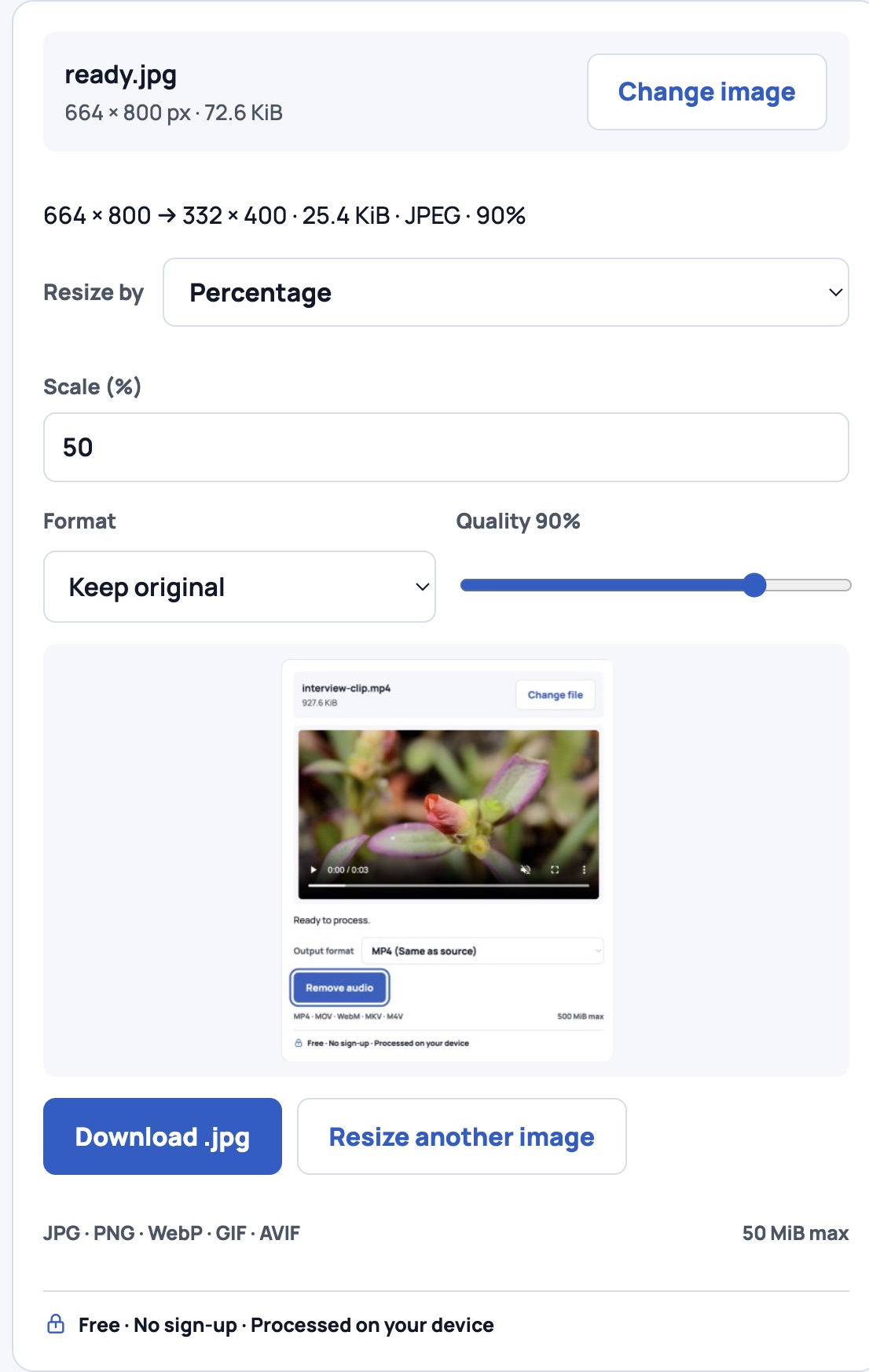
Set a new width and height, keep the proportions if you want, and download the resized image. Nothing is uploaded.
- JPG · PNG · WebP · GIF · AVIF
- 50 MiB max
- No upload
or drag a JPG, PNG, WebP, GIF or AVIF here
Free · No sign-up · Processed on your device
How to use it
- Choose an image from your device.
- Set the width, height or a percentage.
- Download the resized image.
Formats and limits
Resize a JPG, PNG, WebP, GIF or AVIF image by pixels or percentage, keep the aspect ratio and download PNG, JPEG or WebP.
- Input
- JPG · PNG · WebP · GIF · AVIF
- File limit
- 50 MiB
- Processing
- In your browser, no upload
- Output
- PNG · JPEG · WebP
Processing facts
- No upload — the file stays in your browser.
- 50 MiB · File limit
- Phone transfer files expire after 1 hour.
Resizing and compressing are different
Resizing changes how many pixels the image has. Compressing changes how many bytes each pixel costs. A 4000 px photo resized to 1600 px has a quarter of the pixels, and the file usually shrinks by a similar factor even before compression. Changing the quality slider alone keeps the dimensions and trades detail for size. Most images benefit from both: resize to the size the page actually needs, then choose a sensible format and quality.
Keeping the aspect ratio
The aspect ratio is the relationship between width and height. With the lock on, typing a width recalculates the height from the original proportions, so faces and text do not stretch. Pixels are whole numbers, so the calculated side rounds by a pixel; a 1600 × 1067 photo becomes 800 × 533, not 800 × 533.5. That rounding is invisible, but two resizes in a row can drift, so start from the original each time.
Upscaling has limits
Enlarging interpolates between existing pixels. It cannot invent detail, so a 640 px image stretched to 1920 px looks soft, especially at edges and text. AI upscalers guess plausible detail, which is a different operation with its own artifacts. If the source is small, the honest fix is to use a smaller display size rather than a larger file.
Choosing dimensions for the web
Pick the largest size the layout will display, then add a second version for high-density screens if the image matters. A full-width hero on a 1440 px layout rarely needs more than 1440–1920 px. Product thumbnails can be 400–600 px. Resizing to the real display size cuts bytes, improves loading and avoids the browser scaling a huge image down on every visit.
Formats and quality
JPEG is universally supported and compresses photos well. WebP is smaller at the same visual quality and also supports transparency; current browsers all read it. PNG is lossless, so it is the right choice for screenshots, logos and images with sharp edges, but it is a poor choice for photographs. The quality slider only affects JPEG and WebP; PNG output ignores it.
Orientation, transparency and color
Phone photos often store rotation in EXIF rather than rotating the pixels. Browsers apply that orientation when decoding, so the resized result appears upright. Transparent pixels survive PNG and WebP, and are filled with white in JPEG. The canvas works in sRGB, so a wide-gamut source may shift slightly, which is normal for web output.
What the tool does not do
It does not crop, rotate, sharpen, remove backgrounds or process a batch. It also does not choose dimensions for you. For a single image that needs a new size and format, the controls here cover the common cases; for a folder of images, a command-line tool is faster.
Common questions
Does resizing reduce quality?
Shrinking an image discards pixels, but at normal viewing size the result usually looks identical. Enlarging cannot add detail that was not recorded, so an upscaled photo looks softer. Keep the original file if you may need a larger version later.
Which format should I choose?
JPEG is the safest for photos and the smallest for sharing. WebP is often 25–35% smaller at similar quality and is supported by every current browser. PNG is lossless and keeps transparency, but photographic PNGs are much larger.
Why did the height change when I typed the width?
Aspect ratio lock is on by default. It keeps the original proportions so the image is not stretched. Turn the lock off to set both sides freely, or use percentage mode to scale both at once.
What happens to a transparent image?
Transparency survives PNG and WebP output. Saving to JPEG replaces transparent areas with white, because the format has no alpha channel. Choose PNG or WebP if the cut-out must keep its background.
Is my image uploaded?
No. The image is decoded, resized and encoded in the browser, and the download is created locally.