 AudioRemover
Flip and Rotate Image
Load an image, turn or mirror it with one click, and download the result. Processing stays in the browser.
- JPG · PNG · WebP · GIF · AVIF
- 50 MiB max
- No upload
or drag a JPG, PNG, WebP, GIF or AVIF here
Free · No sign-up · Processed on your device
How to use it
- Choose an image from your device.
- Rotate or flip it until it looks right.
- Download the edited image.
Formats and limits
Rotate a photo by 90, 180 or 270 degrees, mirror it horizontally or vertically, then download PNG, JPEG or WebP.
- Input
- JPG · PNG · WebP · GIF · AVIF
- File limit
- 50 MiB
- Processing
- In your browser, no upload
- Output
- PNG · JPEG · WebP
Processing facts
- No upload — the file stays in your browser.
- 50 MiB · File limit
- Phone transfer files expire after 1 hour.
Flip image
A flip swaps one axis and keeps the other. Horizontal flip turns the picture left to right, which is what a mirror does; vertical flip turns it top to bottom, useful for correcting an upside-down scan or a reflection. Flipping does not change the width or height, and every pixel is preserved, so text becomes mirrored but nothing is cropped.
Mirror image
Mirroring is another name for a flip, usually a horizontal one. It is the right fix when a selfie looks reversed compared with what you saw in the mirror, when a logo appears backwards, or when a photo of text needs to be readable. Check one line of text afterwards: if it reads normally, the mirror is correct for that use; if not, flip it back.
Rotate image
Rotation turns the whole frame around its centre. A 90-degree turn swaps width and height; 180 degrees keeps the dimensions and turns the image upside down; 270 degrees is the other quarter turn. Rotation is for sideways scans, phone photos held the wrong way and pages that need to be read upright. Free angles are not offered because they leave empty corners that must be cropped.
Rotating and flipping are different operations
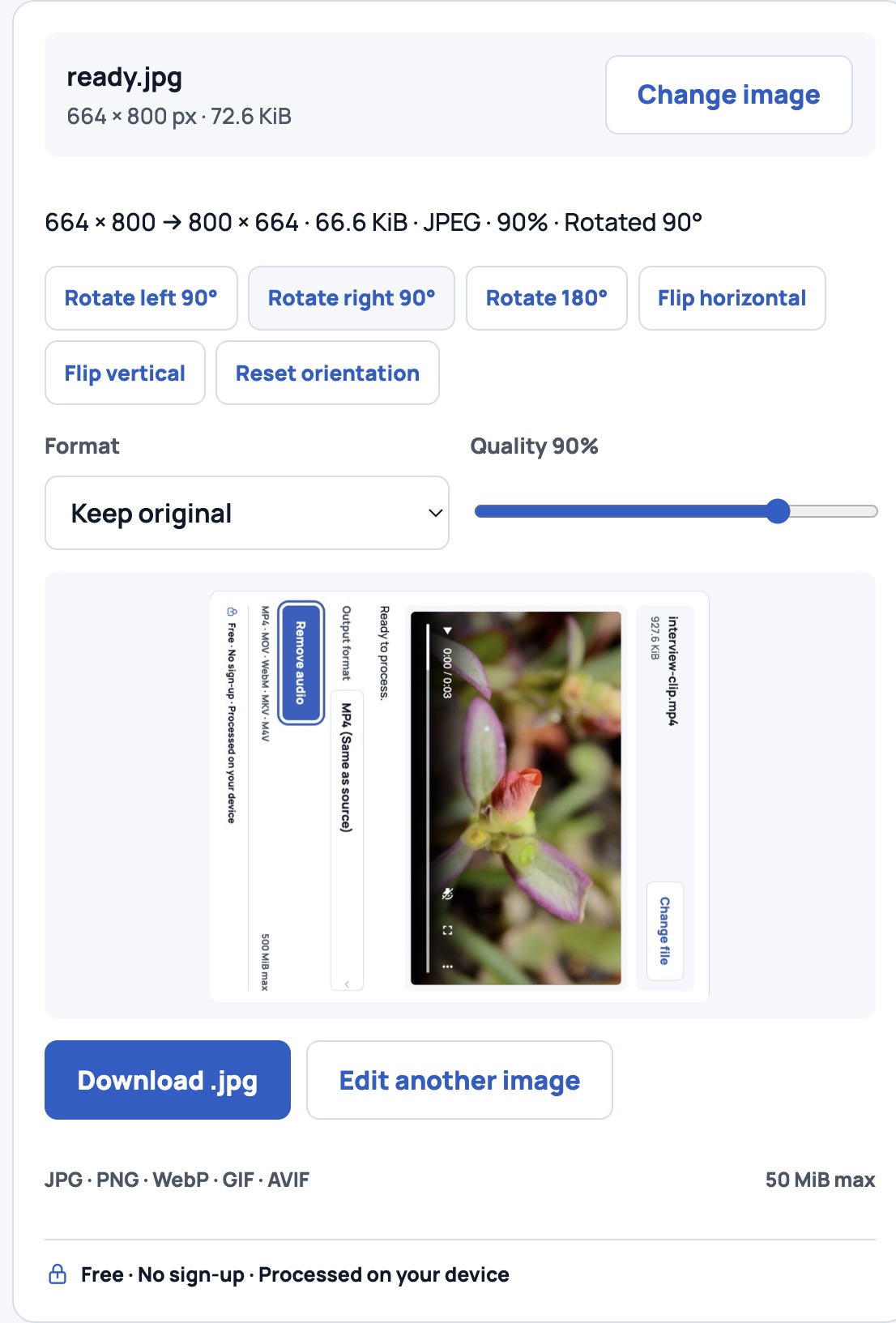
A 90-degree rotation moves the top edge to the side, swapping width and height. A 180-degree rotation turns the image upside down without changing its dimensions. A flip mirrors the picture: horizontal flip swaps left and right, vertical flip swaps top and bottom. The four operations can be combined, and the order matters, which is why this tool keeps a single transform state instead of applying an edit to the already-exported file.
Lossless versus re-encoded output
The browser draws the transformed image onto a canvas and encodes it again. PNG stores the pixels losslessly, so rotating a PNG and saving as PNG does not degrade it, although transparency and color profile details can be normalized. JPEG and WebP are lossy: one extra save at high quality is hard to see, but saving the same photo repeatedly adds softness around edges and text. Always start from the original rather than from a previous export.
Phone photos and EXIF orientation
Many phones record the sensor image in landscape and store a rotation flag in EXIF. Browsers apply that flag when displaying and decoding the image, so what you see is already upright. Exporting from a canvas writes the rotated pixels and drops the flag, which makes the file display correctly in older apps and editors that ignore EXIF. This is one of the few cases where re-encoding improves portability.
When a rotation is the right fix
Scanned pages often come in sideways and need a 90-degree turn. Photos taken with a phone held the wrong way need the same. A mirror is needed less often: selfies are usually already flipped by the camera app, and text photos may need a horizontal flip to become readable. Check a face or a line of text after transforming; reversed letters are the quickest way to spot an unintended mirror.
Formats, transparency and quality
PNG keeps transparency and sharp edges, which suits screenshots, logos and cut-outs. JPEG is smallest for photos but fills transparent areas with white. WebP combines small files with transparency and is supported by every current browser. The quality slider affects only JPEG and WebP; PNG output ignores it. If the image will be edited again later, keep a lossless copy.
Why free rotation is not included
Rotating by an arbitrary angle, such as 3 degrees to straighten a horizon, leaves empty triangular corners. Those corners must be filled, cropped or hidden with transparency, and that changes the final size and composition. Straightening and cropping belong together in an editor, so this page sticks to right angles and mirrors, which keep every pixel and swap dimensions predictably.
What the tool does not do
It does not crop, straighten, resize, sharpen or process a batch. It also does not preserve every metadata block; the output is a fresh file containing the transformed pixels. For a quick orientation fix, the buttons cover the common cases; for anything more, use an editor with a live canvas.
Common questions
Does rotating reduce quality?
The image is redrawn on a canvas and encoded again. PNG output is lossless, so a PNG rotated once keeps its pixels. JPEG and WebP are lossy: one extra save is usually invisible, but repeated conversions slowly add artifacts. Keep the original for further edits.
Why does my photo appear sideways?
Phone photos often store orientation in EXIF metadata instead of rotating the pixels. Browsers apply that rotation when decoding, so the preview looks upright, and the exported file bakes the upright orientation into the pixels. That is why the result looks correct everywhere afterwards.
What is the difference between flipping and rotating?
Rotating turns the image around its center, so the top edge becomes a side. Flipping mirrors it, so left and right swap but the top stays on top. A mirrored selfie is a horizontal flip; a landscape photo turned upright is a 90-degree rotation.
Can I rotate by an arbitrary angle?
This tool handles 90, 180 and 270 degrees plus horizontal and vertical mirroring. A free angle creates empty corners and needs cropping, which belongs in an image editor.
Is my image uploaded?
No. The image is decoded, transformed and encoded in the browser tab.