 AudioRemover
Favicon generator
Choose an image and download every icon a site needs, ready to drop into a project. The squares are cropped and rendered in your browser.
- JPG · PNG · WebP
- 10 MiB max
- No upload
or drag a square JPG, PNG or WebP here
Free · No sign-up · The icons are generated on your device
How to use it
- Choose a square image, at least 512 × 512.
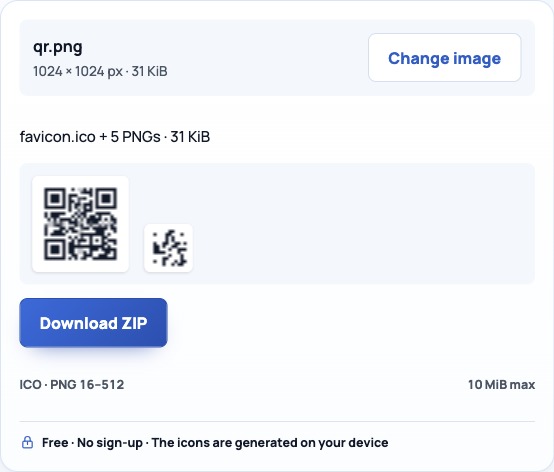
- Check the 32 and 16 pixel previews.
- Download the ZIP and copy the files into your site.
Formats and limits
Turn one square image into a complete favicon set: favicon.ico plus PNGs from 16 to 512 pixels, all in one ZIP. Nothing is uploaded.
- Input
- JPG · PNG · WebP
- File limit
- 10 MiB
- Processing
- In your browser, no upload
- Output
- ICO · PNG 16–512
Processing facts
- No upload — the file stays in your browser.
- 10 MiB · File limit
- Phone transfer files expire after 1 hour.
What a favicon set is for
One image is not enough for every place a site icon appears. A browser tab shows 16 pixels, a bookmark bar 32, a Windows shortcut wants an ICO, an Android home screen 192 and a high-density iOS screen 180 or more. Generating the whole set from one source keeps the icon identical everywhere, which matters more than any single file: a site whose tab icon and home-screen icon disagree looks unfinished.
Preparing the source image
Start from a square, at least 512 × 512 pixels. The subject should fill most of the frame but not touch the edges: iOS rounds the corners of its touch icon and Android applies its own mask, so art that reaches the border gets clipped. Simple shapes and strong contrast survive at 16 pixels; a detailed logo with small text does not, and the usual fix is a simplified mark used only for the icon.
How the crop works
The tool takes the largest centered square from the image, so a landscape photo keeps its middle and loses equal strips on the left and right. That is predictable, but it means the crop cannot be adjusted here. If the subject is off-centre, crop it to a square in an image editor first — then every size this tool produces will match what you saw when you made the crop.
The ICO file
The .ico here is a modern one: it packs 16, 32 and 48 pixel PNG images into a single file, which every current browser, Windows Vista and later, and most tools read correctly. Very old software that expects uncompressed bitmap data inside the ICO may not display it. For a personal site or a modern application that edge case almost never comes up.
Adding the icons to a site
Copy the files into the site root and reference them from the page head: a link to favicon.ico, one to favicon-32x32.png with sizes and type attributes, and one to apple-touch-icon.png for iOS. The 192 and 512 pixel files belong in the web app manifest. Browsers and operating systems cache icons aggressively, so check for changes in a private window or after clearing the cache.
Testing at real size
Icon work is judged at 16 pixels. Look at the previews on this page at their true size rather than the enlarged one: if two nearby shapes merge into a blob or a letter stops being a letter, simplify the artwork. A common mistake is approving a crisp 512 pixel icon and only noticing at deploy time that the tab shows an unrecognisable smudge.
What this tool does not do
It does not generate an SVG favicon, does not write the HTML snippet for you, and does not add backgrounds, borders or rounded corners. It also does not optimize the PNGs beyond the basic encoding by the browser. Those steps — especially the HTML — depend on the site, and a copy-pasted snippet from a generator is a common source of broken icon links.
When to regenerate
Regenerate the set whenever the logo changes, and keep the ZIP with the brand files so the next person does not have to hunt for the source image. If the icon appears blurry after an update, check that the old files were replaced rather than added alongside, and that the link tags point at the new names — cached icons are the usual suspect when a fresh icon refuses to appear.
Common questions
Are my images uploaded to a server?
No. The picture is cropped, resized and encoded in your browser, and the ZIP is assembled on your device. Nothing is sent anywhere — the icons for your site never leave your machine.
What is inside the ZIP?
favicon.ico, which contains the 16, 32 and 48 pixel versions; separate PNG files at 16, 32, 48, 192 and 512 pixels; and apple-touch-icon.png at 180 pixels. That covers browser tabs, bookmarks, Android home screens and iOS home screens.
Why does the source need to be square?
The crop takes the largest centered square from your image, so a wide picture loses its sides. Start from a square, at least 512 × 512, with the subject centered and some breathing room — icons are tiny and anything near the edge disappears on a phone home screen.
Which file should my site point to?
Modern browsers accept a single PNG link and pick the size they need, while the ICO still covers older Windows shortcuts and bookmarks. A typical setup links favicon.ico, favicon-32x32.png and apple-touch-icon.png; the 192 and 512 files serve Android and web app manifests.
Does it add rounded corners or a background?
No. The icons are the cropped image, untouched. iOS masks the touch icon itself and Android has its own shape, so adding your own rounded corners usually produces a double-rounded outline. Start from artwork designed as a square icon instead.
Will transparency survive?
Yes. Transparent areas in a PNG or WebP source stay transparent in the PNG icons and inside the ICO file. JPEG has no transparency, so the corners of a JPEG source arrive as whatever colour the file stores — usually white.