 AudioRemover
Compress Image
Shrink a photo below a size limit without uploading it. The tool lowers the quality first and only scales the picture down when it has to.
- JPG · PNG · WebP · AVIF · GIF · HEIC · BMP · ICO
- 50 MiB max
- No upload
or drag an image here
Free · No sign-up · Processed on your device
How to use it
- Choose an image from your device.
- Set a target size and output format.
- Download the smaller image.
Formats and limits
Compress a photo to a target size in your browser. Aim for 100 KB, 200 KB or 500 KB and download a smaller WebP, JPEG or PNG. Nothing is uploaded.
- Input
- JPG · PNG · WebP · AVIF · GIF · HEIC · BMP · ICO
- File limit
- 50 MiB
- Processing
- In your browser, no upload
- Output
- WebP · JPEG · PNG
Processing facts
- No upload — the file stays in your browser.
- 50 MiB · File limit
- Phone transfer files expire after 1 hour.
How target size works
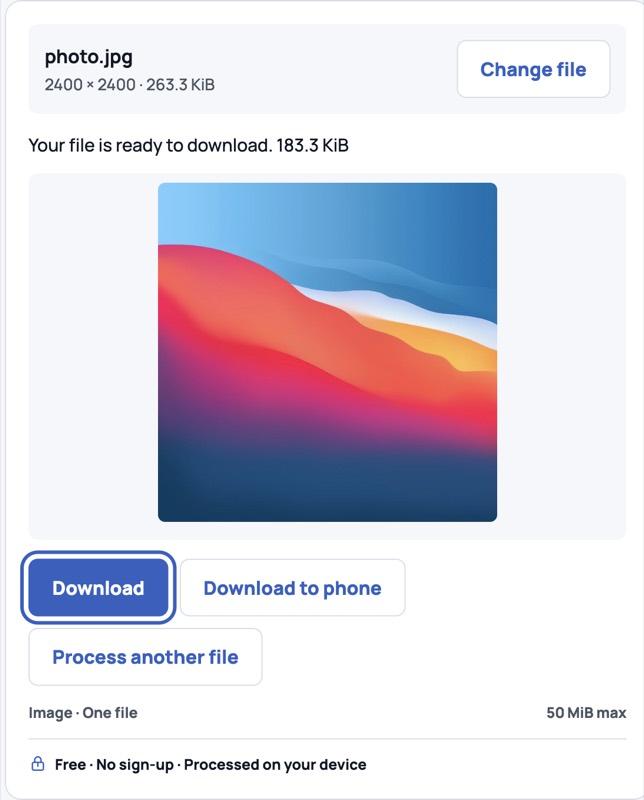
Pick one of the presets — 100 KB, 200 KB, 500 KB or 1000 KB — or type your own limit. The tool searches for the highest quality that still fits under that number, and only scales the picture down when quality alone cannot reach it. The search runs in the browser, so nothing is uploaded while it works. The panel then reports the finished size next to the original, so you can decide whether to export or try a looser target.
Pick the right format
WebP is the best default for photos and screenshots: it is usually the smallest at the same visual quality and every current browser opens it. JPEG is the safest for email, older software and print shops. PNG keeps transparency and sharp edges, which makes it right for logos and interface screenshots but a poor fit for photographic images that must stay under a tight limit.
Format, width and size work together
A 100 KB target on a 4000 px photo cannot be met without visible damage. Lowering the max width first is gentler: at 1280 px most photos still look sharp on screen, and the saved pixels reduce the file far more than a quality drop would. Keep the original dimensions only when the image will be printed or zoomed into.
Check before you share
Small targets soften fine detail, text and faces, and gradients can start to band. Open the downloaded file at 100% and compare it with the original, especially for portfolio images, product photos and anything going to a printer. If the result looks worse than expected, raise the target by one step rather than accepting a soft file.
Why a photo refuses to shrink
Three things limit how far a file can go: it was already heavily compressed, it has smooth gradients that band easily, or it is really a PNG photograph, where lossless data leaves almost no room for a smaller encode. Switch PNG photos to WebP or JPEG first. A transparent PNG must become WebP to keep its alpha channel; converting it to JPEG fills the background with white.
What compression costs
Compression trades detail for bytes. Faces soften first, then fine texture such as hair, fabric and foliage, and text or thin rules blur at small targets. Screenshots with interface text survive better as WebP than JPEG, because JPEG adds colour noise around letters that makes them look dirty rather than merely small.
Keep the original
The tool always writes a new file and never edits the source. Keep the original photo, because compression cannot be undone: once detail is gone, re-compressing the result at a better quality will not bring it back. Archive the full-size file and share the compressed copy.
Choosing a realistic target
Match the number to where the picture will appear. A 100 KB ceiling suits avatars, form photos and thumbnails; 300 to 500 KB is plenty for a blog image at 1200 px; product and portfolio images can stay near 1 MB. Picking the smallest possible number usually trades away more than the page ever needed.
Common questions
How do I compress an image to 100 KB?
Enter 100 in the target size field and start. The tool tries several quality levels and scales the image down only if the target cannot be reached otherwise.
Will compression change the image dimensions?
Only when necessary. Quality is reduced first; if the target is still too small, the picture is scaled down proportionally.
Which format compresses best?
WebP usually gives the smallest file at the same visual quality, followed by JPEG. PNG is lossless and stays large for photos.
Can I compress a PNG?
Yes, but a photo saved as PNG has little room for lossy savings. Choose WebP or JPEG when the image does not need transparency.
Is the original file changed?
No. The tool creates a new file; your original stays untouched on your device.