 AudioRemover
Circle Crop
Turn a photo into a round image for profile pictures, icons and avatars. Everything runs in your browser.
- JPG · PNG · WebP · GIF · AVIF
- 50 MiB max
- No upload
or drag a JPG, PNG, WebP, GIF or AVIF here
Free · No sign-up · Processed on your device
How to use it
- Choose an image from your device.
- Adjust the zoom and position inside the circle.
- Download PNG, WebP or JPEG.
Formats and limits
Crop any image to a circle, adjust zoom and position, and download a transparent PNG or a JPEG with a background color.
- Input
- JPG · PNG · WebP · GIF · AVIF
- File limit
- 50 MiB
- Processing
- In your browser, no upload
- Output
- PNG · WebP · JPEG
Processing facts
- No upload — the file stays in your browser.
- 50 MiB · File limit
- Phone transfer files expire after 1 hour.
What a circle crop actually produces
A normal image file is a rectangle. A circle crop keeps the square canvas and makes everything outside the circle transparent, so the visible shape is round. That is exactly what profile pictures expect: platforms place the image in a round frame, and transparent corners blend with any background. The crop does not remove pixels from your original file; it writes a new image.
Transparency, WebP and JPEG
PNG and WebP preserve the transparent corners. JPEG has no alpha channel, so the corners must be filled with a solid color, white by default. Choose PNG for avatars that may sit on a dark or colored background, WebP for a smaller file with the same transparency, and JPEG only when a white square behind the circle is acceptable or the destination does not support transparency.
Fitting the photo inside the circle
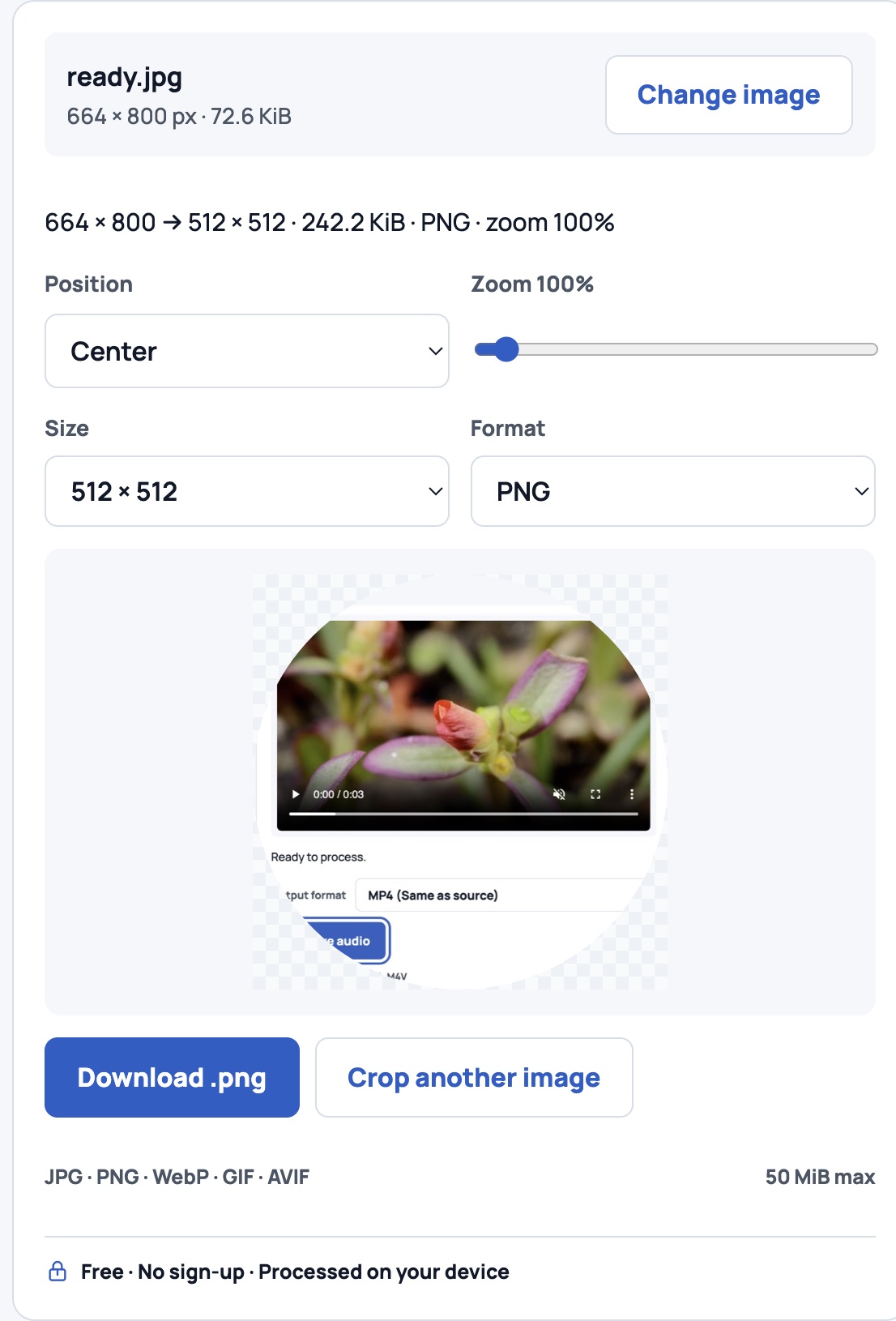
The tool scales the image until it covers the circle, then shows the part inside it. At 100% zoom the shorter side fits the circle exactly. Increasing the zoom enlarges the photo so you can keep a face and discard the background. The position control chooses which edge stays anchored: center for most portraits, top for tall images, left or right when the subject is off-center.
Sizes and platforms
Most social platforms display avatars between 40 and 200 pixels but store a larger source. 512 × 512 px is a practical default: small enough to load quickly, large enough to look crisp on high-density screens. Use 1024 px when the same image will be printed or shown on a large profile page. Avoid exporting at 64 or 128 px unless the image is only used in a compact list.
Edges, resolution and quality
The circle edge is anti-aliased by the canvas, so it looks smooth at normal sizes. Very small exports can show a slightly jagged rim, and JPEG compression adds ringing around high-contrast edges. Exporting at 512 or 1024 px and letting the platform scale down hides both problems. If the photo is low resolution, a larger circle will look soft because the pixels are being stretched.
What the tool does not do
It does not draw rings or shadows, create ellipse or rounded-rectangle masks, remove backgrounds or process a batch. It also does not retouch the photo. For a clean round avatar, the controls here are enough; for layered graphics, use an editor that keeps layers and exports transparency.
Designing for a 40-pixel avatar
The same image is often shown at 40 px in a comment list. At that size a full-body photo becomes an unreadable dot, while a face or a simple mark still reads. Zoom in until the subject fills most of the circle, and check the export at 64 px before uploading. A clear shape and strong contrast matter more than fine detail.
Common questions
Is the file really cropped to a circle?
The output is a square image with the corners made transparent, which is how avatars are usually stored. PNG and WebP keep the transparency; JPEG fills the corners with the background color you choose.
What size should I use for an avatar?
512 × 512 px covers profile pictures on most platforms and stays sharp when displayed large. Use 256 px for small lists and icons, or 1024 px if the image will also be printed. Every platform scales the image down, so a larger source is safer than a smaller one.
Why does part of the photo disappear?
A circle inside a square can only show a round window of the image. The tool scales the photo to cover the circle, then hides everything outside it. Change the zoom or the position to choose which part stays visible; nothing is deleted from your original file.
Can I add a border or ring around the circle?
This tool does not draw borders. Add a ring in a design tool or with CSS on the page that displays the image. Keeping the export clean makes it easier to reuse on different backgrounds.
Is my image uploaded?
No. The image is decoded, masked and encoded in the browser tab.