 AudioRemover
EXIF editor
Load a photo, inspect its EXIF groups, tick what should go and download a copy with those tags removed.
- JPG
- 50 MiB max
- No upload
or drag a JPG photo here
Free · No sign-up · Processed on your device
How to use it
- Choose a JPEG photo.
- Review the EXIF groups it contains.
- Remove the selected groups and download the copy.
Formats and limits
See the camera, date, GPS and author data stored in a JPEG, then remove the groups you choose without re-encoding a single pixel. Nothing is uploaded.
- Input
- JPG
- File limit
- 50 MiB
- Processing
- In your browser, no upload
- Output
- JPG
Processing facts
- No upload — the file stays in your browser.
- 50 MiB · File limit
- Phone transfer files expire after 1 hour.
What EXIF actually stores
A JPEG can carry a metadata segment — the EXIF block — alongside the image data. It typically records the camera make and model, the lens, the software that saved the file, the capture time, exposure settings, and often the GPS coordinates of where the photo was taken. Some cameras and phones also write an author or copyright field. All of it travels with the file, which is why a photo posted online can reveal a location.
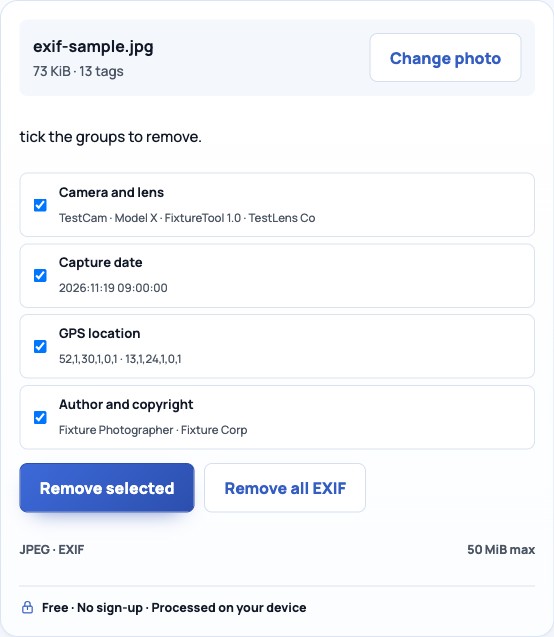
Removing tags without touching pixels
A JPEG is a sequence of segments: the image data is one of them, and EXIF is another. This editor parses the file, drops the requested groups from the metadata segment and writes the result back with every image segment copied verbatim. No decoder runs, no canvas is involved, no quality is lost. The file may shrink a little because the metadata is gone, and every pixel stays exactly as the camera wrote it.
Choosing what to remove
The groups are organised the way people think about privacy: camera and lens (which model, which software), capture date (when), GPS (where), and author or copyright (who). Removing all of them is the safe default for publishing. Keeping the date but removing GPS is common for photos that should stay sortable in a library. Removing only the author field is enough when the model and date are harmless but a name should not travel.
Where the risk actually lives
Camera model and exposure data are mostly harmless and sometimes useful. The dangerous fields are GPS coordinates, which can be precise enough to locate a home or a school, and a capture timestamp, which can be cross-referenced with other posts. Author and copyright fields reveal identity. The editor shows a group only when the file actually contains it, so a photo without GPS data does not pretend to have some.
Why the pixels must not be re-encoded
Re-encoding a JPEG means decoding it to pixels and compressing again, which is lossy even at high quality, and can shift colours slightly. For EXIF work that is an unnecessary cost: the metadata is a separate segment and can be edited in place. This is also why the tool is fast — a large photo is processed by copying bytes rather than by decoding a 12-megapixel image twice.
What does not survive the edit
Thumbnails embedded in the EXIF block are removed together with the tags that describe them, which keeps the file consistent. Maker notes, the vendor-specific blobs some cameras write, are dropped when the camera group is removed; some of them contain serial numbers. Orientation is preserved, so a photo that relies on an EXIF rotation flag still displays the right way up in viewers.
Check before you share
After downloading, open the copy in a viewer that shows metadata and confirm the groups you removed are gone. Then check the picture itself plays the right way up and is not unexpectedly rotated, because some viewers depend on the orientation tag that a tag-clearing edit can affect. Keep the original until the cleaned copy has been posted where it belongs; the edit is not reversible without it.
When EXIF editing is not enough
Some photos hide location in other places: the file name, a visible landmark, a reflection, or data added by an app that re-saves the image. Removing EXIF does not blur anything. For PNG and WebP, use a converter to JPEG first or a tool that understands those containers. And for anything that will be published widely, treat the removed metadata as the minimum, not the whole privacy job.
Common questions
Are my photos uploaded to a server?
No. The file is read and rewritten in your browser, and the download is created on your device. Nothing is sent anywhere, which matters most for photos whose EXIF contains a home address.
Does removing EXIF reduce image quality?
No. The tool edits the metadata segment of the JPEG and leaves the compressed image data untouched, so no pixel is decoded or re-encoded. The picture is bit-for-bit the same; only the tags change. That is different from the EXIF removal tool that re-encodes the image, which does cost a generation of quality.
Can I keep the date but remove only the GPS?
Yes. Groups are removed independently: camera information, capture date, GPS location and author/copyright can each stay or go. Removing just the GPS is the usual choice for a photo that should keep its date for sorting but should not reveal where it was taken.
Why only JPEG?
EXIF is written differently inside PNG and WebP, and this editor reads and writes the JPEG metadata segment directly. Supporting the other containers would mean separate parsers with their own failure modes. JPEG is also where camera GPS data most often ends up, so it is the format that matters for this job.
Can it change or fake EXIF values?
No. The editor removes groups; it does not edit numbers or write new values. Forging capture data is a different feature with different risks, and it is not offered here. Use a desktop metadata tool if you genuinely need to rewrite fields.
How is this different from the EXIF remover?
The remover strips all metadata by re-encoding the whole image, which guarantees nothing survives but costs one generation of quality. This editor removes only the tags you pick and never touches the pixels, so the photo stays identical. Use the editor for selective removal, the remover when you want everything gone and the image re-encoded anyway.