 AudioRemover
SVG to PNG, JPG or WebP
Choose an SVG, pick an output format and a scale, and download an image any app can open. Rendering happens in your browser.
- SVG
- 10 MiB max
- No upload
or drag an .svg file here
Free · No sign-up · The image is rendered on your device
How to use it
- Choose an SVG file.
- Pick PNG, JPG or WebP, a scale and a background.
- Download the image.
Formats and limits
Turn an SVG file into a crisp PNG, JPG or WebP at one to four times its size, with a transparent or white background. Nothing is uploaded.
- Input
- SVG
- File limit
- 10 MiB
- Processing
- In your browser, no upload
- Output
- PNG · JPG · WebP
Processing facts
- No upload — the file stays in your browser.
- 10 MiB · File limit
- Phone transfer files expire after 1 hour.
What rasterizing actually does
An SVG describes shapes; a PNG, JPG or WebP stores pixels. Rasterizing means asking the browser to draw those shapes onto a canvas at a chosen pixel size and then exporting the result. The SVG scale in the file is just a suggestion — the 1×–4× control decides how many pixels the output gets, and a logo drawn at 2× stays sharp when displayed large while a 1× export of the same logo may look slightly soft on a high-density screen.
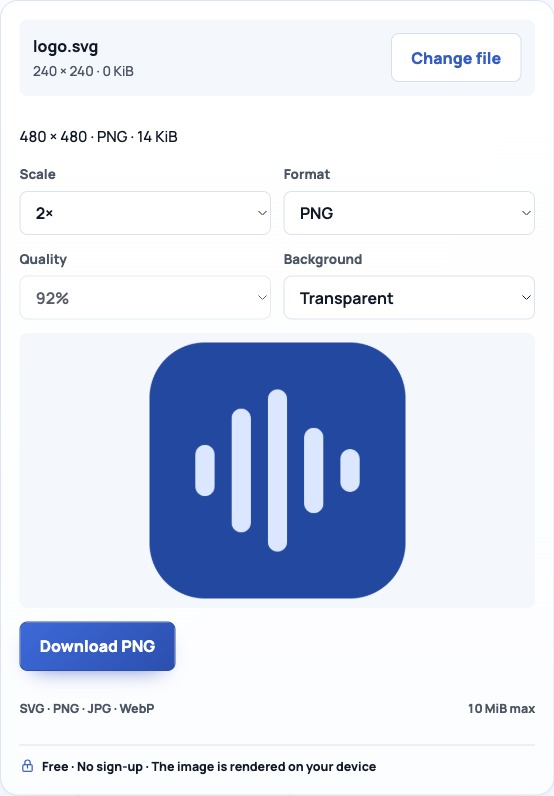
Choosing the scale
1× matches the size the SVG declares, which is usually the right choice for a favicon or a diagram used at its intended size. 2× and 3× cover high-density screens and video projects, where the same file is displayed larger than its declared size. 4× is for banners and anything that will be zoomed into. Every step up multiplies both dimensions, so the pixel count grows four times per step — a 3× export of a detailed illustration is already a large file.
How the base size is found
The tool reads width and height attributes from the SVG’s root element first, because that is the size the file declares. If they are missing, it falls back to the viewBox, which describes the drawing coordinate system. A file with neither is assumed to be the browser’s default 300 × 150, so a minimal hand-written SVG may need its viewBox checked before conversion.
Transparent or white
Transparent output keeps the SVG’s own transparency and is what you want for logos, icons and anything that will be placed on a page with its own background. White fills the canvas before drawing, which suits Word documents, slide decks and print previews where a transparent background shows as a checkerboard or turns black. JPG cannot store transparency at all, so choosing it fills the background with white automatically; PNG and WebP keep the alpha channel.
External resources and browser quirks
Browsers refuse to load external images, fonts and stylesheets into a local SVG for security reasons, so a file that references them can render with missing parts or come out blank. Embed the resources as data URIs inside the SVG to fix that. The rendering itself uses the browser’s engine, which means filters, blend modes and clipping can differ slightly from Inkscape or Illustrator — for critical artwork, compare the export with the original.
What each format keeps
PNG is lossless, so the shapes are crisp at the chosen pixel size, and it keeps the alpha channel. WebP keeps transparency and is usually smaller than PNG for flat artwork; at 100% it is a very high-quality lossy pass, and at 92% the file gets smaller still. JPG is always lossy and has no alpha channel, but it is the most compatible option for office suites, email and older print workflows. All three lose scalability: zoom into the export and you see pixels, while the SVG stays sharp at any size.
Where this is useful
Placing a logo in a Word document or a slide deck, adding an icon to a video project, uploading artwork to a platform that only accepts bitmaps, or producing a social preview image from vector art — each of these needs a bitmap of the right size rather than a scalable file. Choosing the format to match the destination and the scale to match where the image will land avoids both a soft upscale and an unnecessarily huge file.
What this tool does not do
It does not optimize or minify the SVG, does not edit shapes, and does not crop or pad the result. It also does not flatten an animated SVG into frames — an SMIL or script animation renders as its initial state. Those are separate jobs: optimizing lives with the SVG optimizer, cropping with the image tools, and converting between raster formats with the image converter.
Common questions
Are my files uploaded to a server?
No. The SVG is read, drawn and encoded in your browser, and the download is created on your device. Nothing is sent anywhere.
Why rasterize an SVG at all?
SVG is ideal on the web but many apps — office suites, video editors, some print workflows and older social platforms — only accept bitmaps. Converting at 2× or 3× gives those apps a file that still looks sharp on high-density screens.
Can I paste SVG code instead of a file?
No, this page takes an .svg file. Save the markup as a file first — any text editor can do it — and then choose it here. That keeps the tool simple and avoids silently dropping malformed markup.
My SVG renders blank — why?
The most common cause is a reference to an external file: an image, a custom font or a stylesheet the browser will not load for a local SVG. Inline those resources into the SVG and it will render. A file that is not valid SVG, or is saved as HTML with an .svg extension, can also come out blank.
How large can the output be?
Outputs above 8000 pixels on either side are refused, because browsers start failing to allocate canvases that large. The base size comes from the SVG’s width and height; if those are missing, the viewBox is used, and failing both, a 300 × 150 default.
Which output format should I choose?
PNG is lossless and keeps transparency, which makes it the right choice for logos, icons and diagrams. JPG is smaller for photographic or textured artwork but cannot store transparency, so transparent areas become white. WebP is usually the smallest of the three at similar quality and keeps transparency, but a few older apps still cannot open it.