 AudioRemover
Watermark and decorate
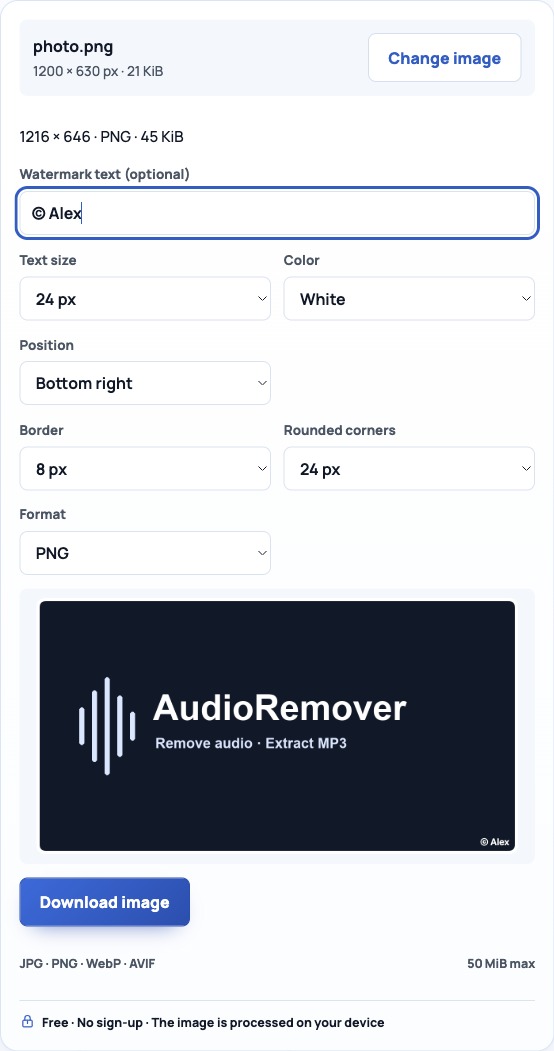
Type a watermark, pick a corner, and finish the picture with a border or rounded edges. The preview updates as you change a setting.
- JPG · PNG · WebP · AVIF
- 50 MiB max
- No upload
or drag a JPG, PNG, WebP or AVIF here
Free · No sign-up · The image is processed on your device
How to use it
- Choose an image from your device.
- Type a watermark and pick the border and corners.
- Download the decorated image.
Formats and limits
Add a text watermark, a clean border or rounded corners to a photo in your browser, then download it as PNG, JPEG or WebP. Nothing is uploaded.
- Input
- JPG · PNG · WebP · AVIF
- File limit
- 50 MiB
- Processing
- In your browser, no upload
- Output
- PNG · JPEG · WebP
Processing facts
- No upload — the file stays in your browser.
- 50 MiB · File limit
- Phone transfer files expire after 1 hour.
What the three decorations do
The tool adds three independent touches to the same canvas. A text watermark is drawn in one corner with a soft shadow behind it so it stays readable over both light and dark areas; the border frames the picture with a solid edge; and the rounded corners cut the angles to a chosen radius. Each control has an off setting — empty text, border none, radius none — so you can use one decoration without the others, or all three at once on a portfolio image that needs a tidy finish.
Placing a watermark that stays readable
The four corner positions keep the watermark out of the way of faces and the subject. Bottom-right is the usual spot for a signature or a copyright line; top-left competes less with the composition but is often cropped away by social platforms. The text is drawn at roughly four-fifths opacity with a soft shadow, which keeps it visible without turning into a solid block — a common failure with plain white text on a bright sky.
Sizing and colour
The four text sizes are fixed pixel sizes, so a 24 px mark is visually larger on a 600 px picture than on a 1200 px one; they are scaled down only when an image wider than 4096 pixels is reduced for drawing. Photos with busy detail need a larger size and the shadow, while a clean sky or a plain wall can carry smaller type. White suits dark photos, black and navy suit light ones, and choosing the opposite of the background is the fastest fix when the first attempt disappears into the picture.
Borders and rounded corners
A border of 4 to 16 pixels frames a picture without competing with it — the kind of edge used for gallery previews and product shots on a white page. Rounded corners of 12 to 48 pixels soften screenshots and profile pictures; larger radii make a card-like shape. The border is added around the picture rather than drawn over it: the canvas grows by twice the border width, so no part of the original is cropped.
Formats and transparency
PNG keeps transparency, which matters when the rounded corners should let the page show through, and it is the right target for anything that will be layered over another background. WebP keeps transparency too and is smaller for photographic content. JPEG cannot store transparency, so the corners of a rounded image come out white — choose PNG or WebP when the corners actually matter. All three exports re-encode the picture once from the working pixels.
What happens to huge photos
Images wider than 4096 pixels are scaled down before drawing, which keeps the canvas inside the memory a phone can spare and stops the browser tab from dying on a 100-megapixel panorama. The preview and the download both reflect that scaled size. If the result is meant for print at full resolution, keep the original and apply the same decoration in a desktop editor instead — but for web and social sizes, the downscale is invisible.
Where this fits
Watermarking before publishing is the routine defence against someone reposting a portfolio, a product shot or a screenshot as their own. The border and rounded corners are cosmetic, but they make a plain export look deliberate next to other files. This page does not replace a design tool: it is for one picture at a time, not a batch, and it cannot composite a logo or crop the photo itself — those are separate jobs with separate tools.
Checking the result before you publish
Look at the watermark at the size the picture will actually be seen: a signature that is readable at full size can vanish in a thumbnail, and one that dominates a full-screen view is too heavy for a feed. Check the corners for cropping after a heavy border, confirm the text is legible over every part of the background, and keep the original until the decorated copy has been uploaded where it belongs.
Common questions
Are my images uploaded to a server?
No. The image is decoded, drawn and re-encoded inside your browser, and the download is created on your device. Nothing is sent anywhere, and the page works offline once loaded.
Does adding a watermark reduce quality?
PNG and WebP exports re-encode once from the pixels in memory; PNG output is lossless, while JPEG and WebP use a high quality setting. Start from the original file rather than an already-compressed copy, and the difference is hard to see.
Can I use an image logo instead of text?
No. This tool draws a text watermark only. A logo watermark needs to be composited with a design tool or an image editor that can layer one picture over another.
How large can the image be?
Files up to 50 MiB are accepted, and images wider than 4096 pixels are scaled down to 4096 pixels before drawing, so a giant panorama does not exhaust phone memory. Export from the original if you need the full resolution.
Why does my watermark disappear?
An empty text field draws no watermark at all. If the text is there but hard to read, choose the opposite colour or move to another corner; a light shadow is drawn behind the text to keep it visible on busy backgrounds.
What does the border colour depend on?
The frame follows the watermark colour: a black watermark produces a black border, and white or navy produce a white one. Round corners keep transparency in PNG and WebP; JPEG has no transparency, so the corners are filled with white.