 AudioRemover
Merge images online
Merge images online: combine two or more photos into one file. Merging images and image stitching are the same job, and the layout decides whether they stack, sit side by side or form a grid. Files stay on your device.
- JPG · PNG · WebP · GIF · AVIF · 2–20 files
- 50 MiB max
- No upload
or drop several JPG, PNG, WebP, GIF or AVIF files here
Free · No sign-up · Processed on your device
How to use it
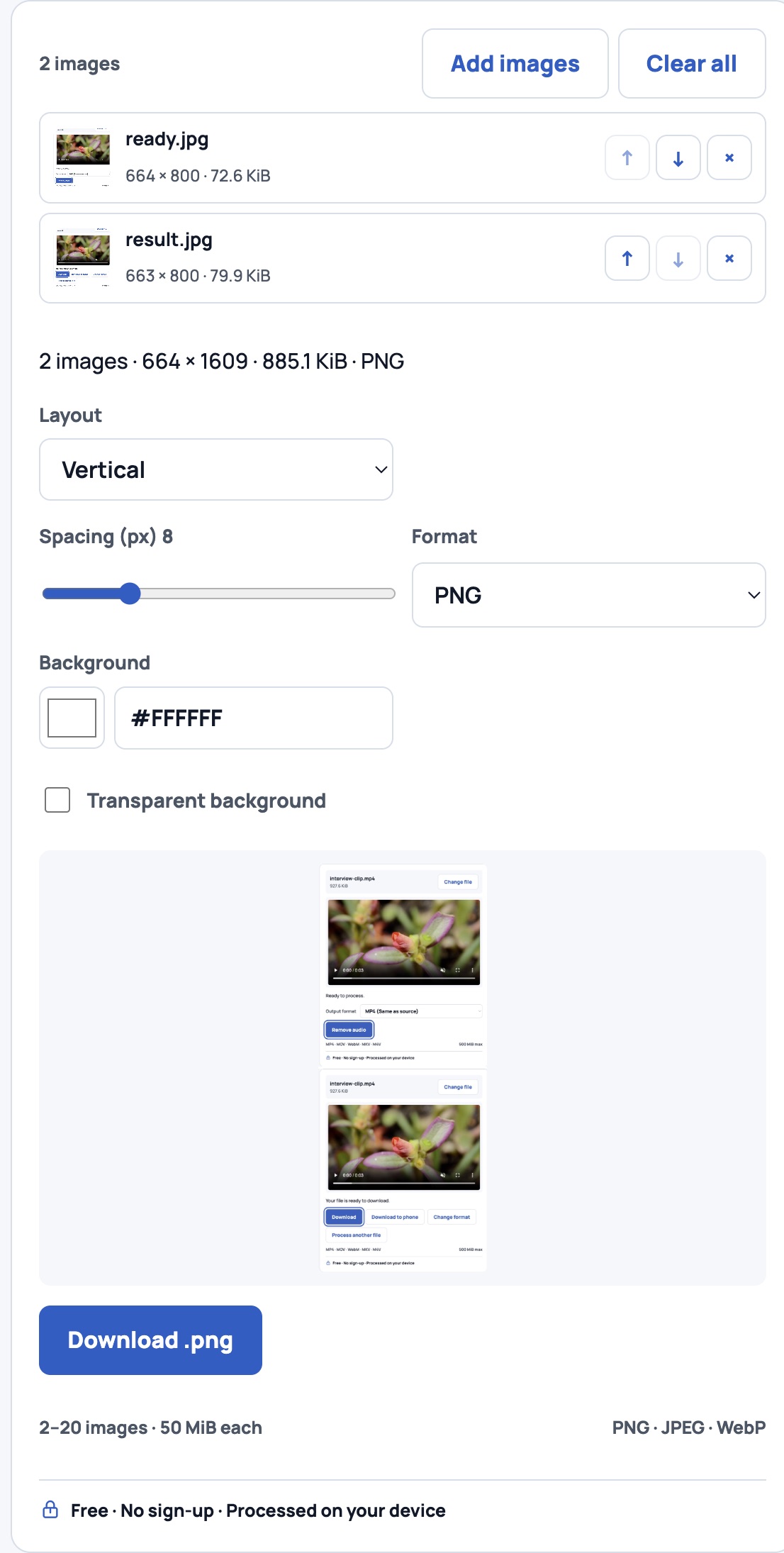
- Add two or more images.
- Choose a vertical, horizontal or grid layout.
- Download the combined image.
Formats and limits
Merge two images or more into one, stacked vertically, side by side or in a grid, with spacing and a transparent or solid background.
- Input
- JPG · PNG · WebP · GIF · AVIF · 2–20 files
- File limit
- 50 MiB
- Processing
- In your browser, no upload
- Output
- PNG · JPEG · WebP
Processing facts
- No upload — the file stays in your browser.
- 50 MiB · File limit
- Phone transfer files expire after 1 hour.
What stitching does
To merge two images — or ten — stitching draws them onto one canvas in a chosen arrangement. The result is a single file with no overlapping, blending or retouching: each source keeps its pixels, scaled only if the layout needs a common size. It is the fastest way to join screenshots, before-and-after photos, chat exports or a series of product shots that should be read as one picture.
Vertical, horizontal and grid
Vertical stacking suits chat screenshots, long pages and step-by-step tutorials, because the eye continues downward. Horizontal joining suits comparisons and timelines where the images should be read across. A grid turns many images into a contact sheet or a small collage, with two to four columns. All three keep the source order, which you can change before exporting.
Handling different sizes
Source images rarely share dimensions. The stitcher normalizes them: vertical layouts scale every image to the widest width, horizontal layouts to the tallest height, and grid layouts fit each image inside a cell sized by the largest width and height. Ratios are preserved, so faces and text do not stretch, and the extra space in a grid cell stays empty rather than cropping the image.
Spacing, background and transparency
The gap control adds a fixed space between items, which separates screenshots and makes a grid readable. PNG and WebP can leave the gaps transparent, so the combined image adapts to any page background. JPEG has no transparency, so it fills the gaps with the background color you pick. A white background suits documents; a matching brand color suits social posts.
Very long images and platform limits
A vertical stitch of ten phone screenshots can be thousands of pixels tall. Browsers handle the canvas, but chat apps, social networks and some document viewers downscale or reject extreme ratios. If the result is meant for sharing, export at a sensible width and split very long pages. For archiving, keep the full-size file and downscale a copy for the destination.
Memory and file count
Every decoded image occupies memory as raw pixels, not as compressed bytes, so twenty 12-megapixel photos are much heavier than their file sizes suggest. The tool accepts up to 20 files of 50 MiB each, but a phone may run out of memory earlier. If the page slows down or the export fails, remove some images or resize the sources first.
What the tool does not do
It does not overlap, blend, caption, border or retouch images, and it does not offer collage templates. It also does not remove backgrounds or align content automatically. For a clean join of several pictures, the layout controls are enough; for a designed collage, use an editor that keeps layers.
Common questions
Do the images need the same size?
No. Vertical layouts scale each image to the widest one, horizontal layouts scale to the tallest, and grid cells use the largest width and height. Aspect ratios are preserved, so nothing is stretched.
When should I use PNG instead of JPEG?
Use PNG when the gaps must be transparent or when the images contain text, screenshots or sharp edges. JPEG is smaller for photos but fills every transparent area with the background color.
Why is my long screenshot blurry after uploading?
Chat and social apps often shrink very tall images. Export at a moderate width such as 1080–1440 px and split extremely long pages into several images, or keep a local copy of the full-size file.
How many images can I combine?
Up to 20 files are accepted, each up to 50 MiB. Very large or numerous photos can exhaust browser memory, so reduce the number or resize the sources if the page becomes slow.
Are my images uploaded?
No. Every image is decoded and drawn in the browser, and the combined file is created locally.